IBM Integration PoT Labs Home page
Lab 2b - Event Streams - MQSOURCE Kafka Connector
1. Overview
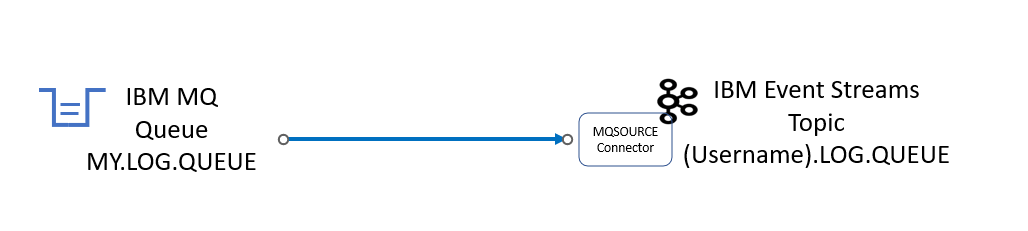
This lab will continue with the MQ StreamQ lab to show how to build MQSOURCE Kafka Connector in IBM Event Streams to synchronize/copy data from IBM MQ Queue to IBM Event Streams Topic.
2. Create IBM Kafka Topic that will be used by the MQ Connector
From the Cloud Pak for Integration Console;
The screen shots are showing this as username student1
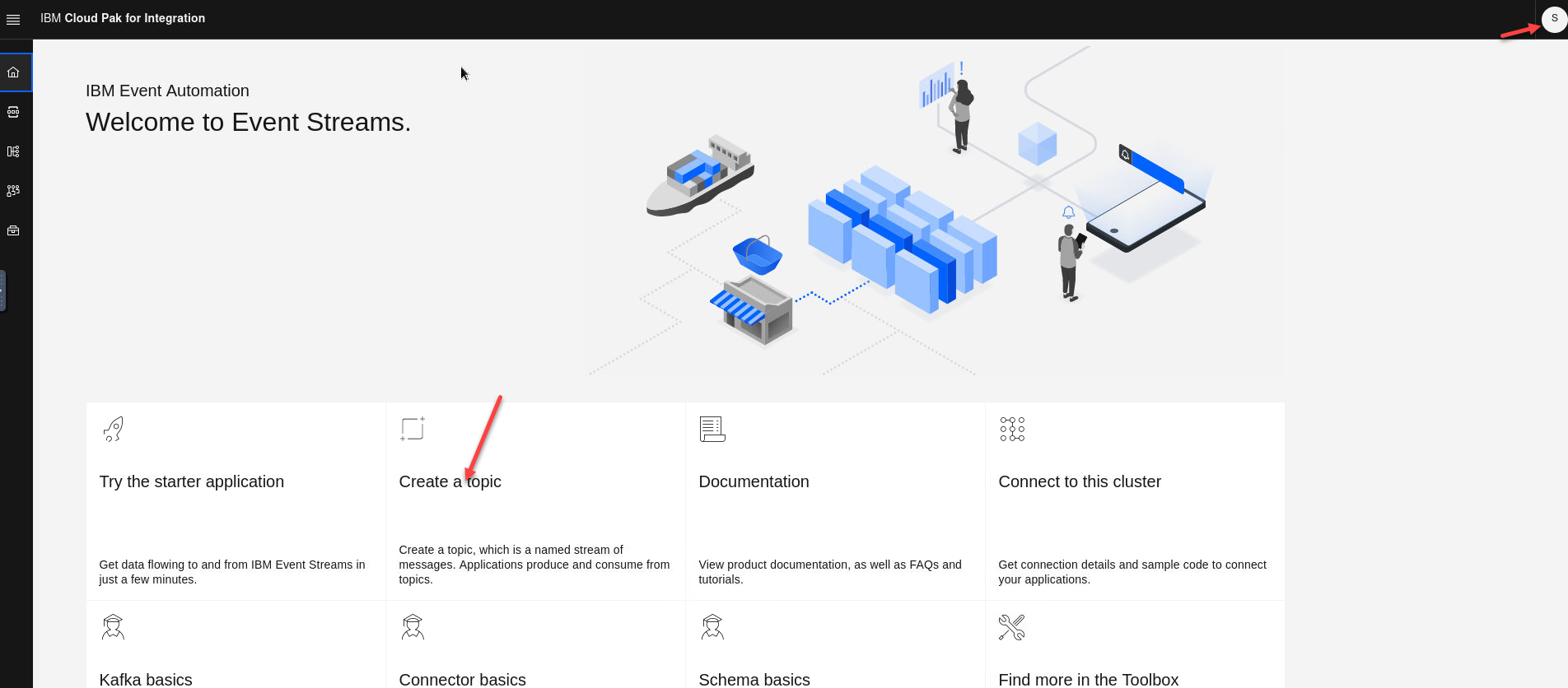
- Open the es-demo kafka cluster and select Create a topic
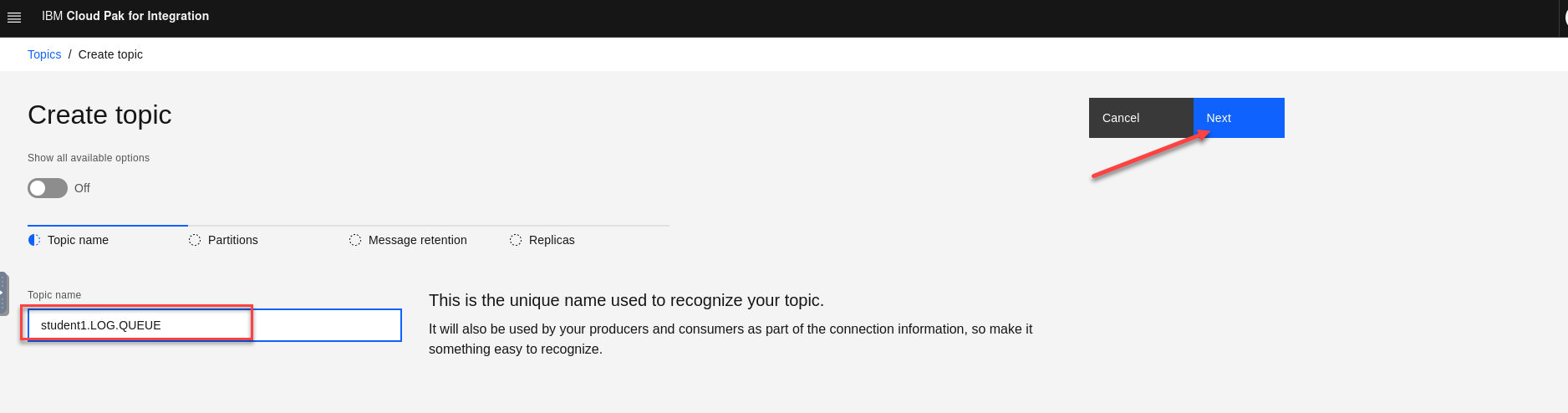
- Enter the new topic name. Make sure that you prefix the topic with your username in this case student1 since this is a shared clusters so you will see other topics listed. The name will be for for the StreamQ we created in the StreamQ lab. (ex: MY.LOG.QUEUE)
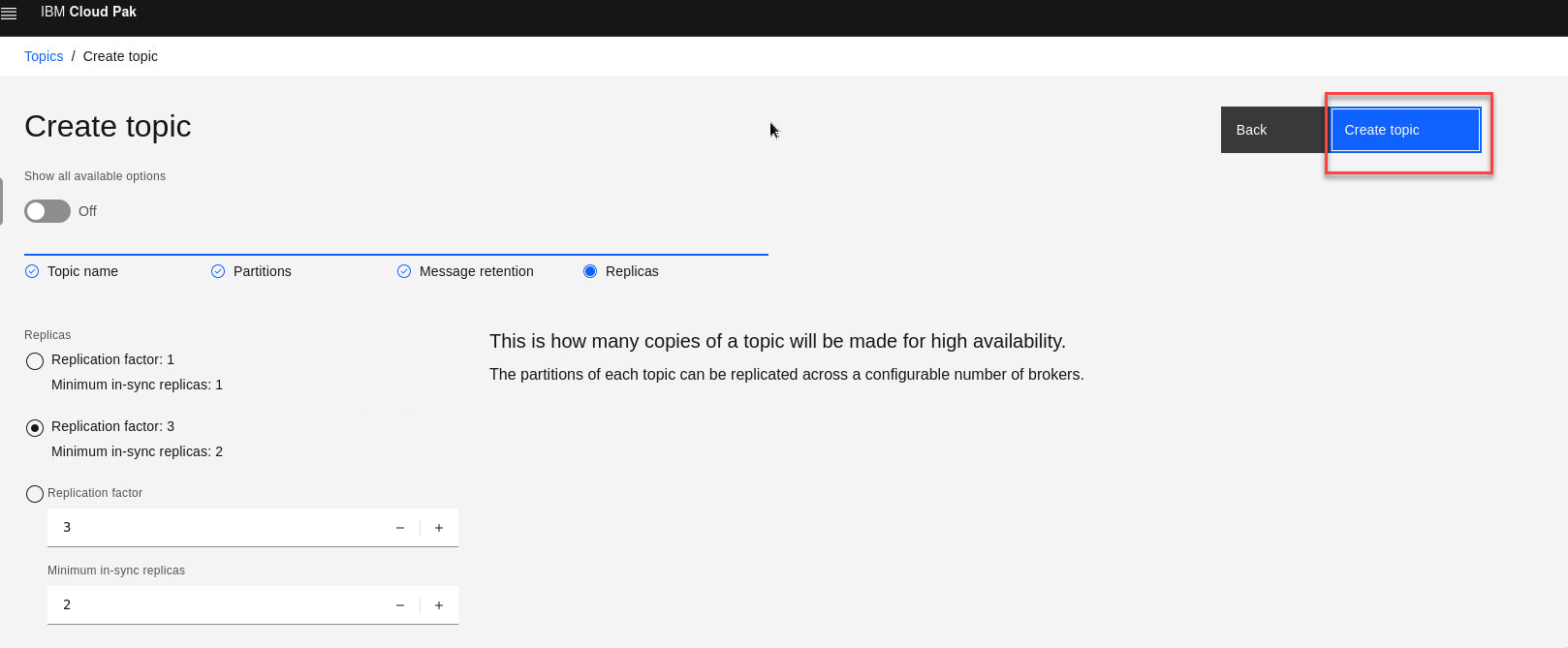
Click Next for the next 3 screens
- Once here click Create Topic.
3. Create MQSOURCE Connector
In this section you will create the MQSOURCE Connector that will connect your MQ StreamQ from the previous lab to the Kafka topic you just created.
- Logon to the OpenShift Console, and click on the Plus sign (Import Yaml).
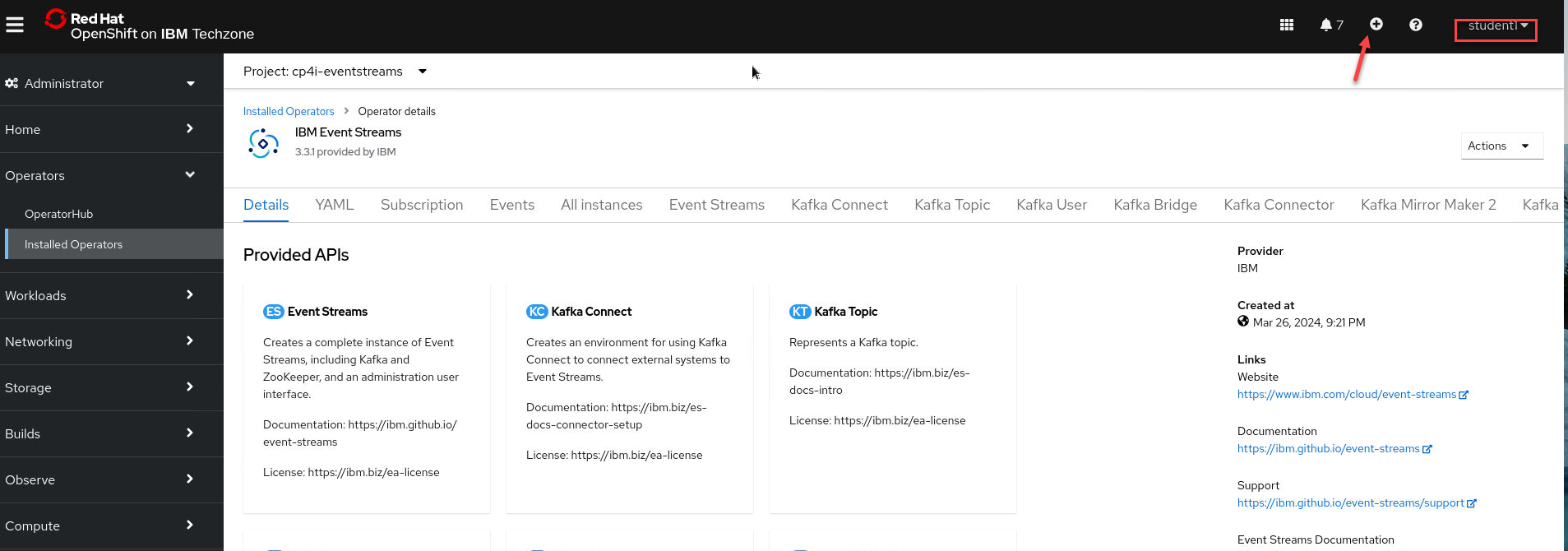
- Copy/Paste the below KafkaConnector yaml, and update the configuration to match your student number.
Example:
(username) = student1
(XX) = 01
apiVersion: eventstreams.ibm.com/v1beta2
kind: KafkaConnector
metadata:
  name: <username>-mq-source-connector
  namespace: cp4i-eventstreams
  labels:
    # The eventstreams.ibm.com/cluster label identifies the KafkaConnect instance
    # in which to create this connector. That KafkaConnect instance
    # must have the eventstreams.ibm.com/use-connector-resources annotation
    # set to true.
    eventstreams.ibm.com/cluster: kafka-connect-cluster
spec:
  class: com.ibm.eventstreams.connect.mqsource.MQSourceConnector
  tasksMax: 1
  config:
    topic: <username>.LOG.QUEUE
    mq.queue.manager: <mqXXstrm>
    mq.connection.name.list: <username>-<mqXXstrm>-ibm-mq.<username>.svc(1414)
    mq.channel.name: SYSTEM.DEF.SVRCONN
    mq.queue: MY.LOG.QUEUE
    mq.user.name: dummy
    mq.password: dummy
    key.converter: org.apache.kafka.connect.storage.StringConverter
    value.converter: org.apache.kafka.connect.storage.StringConverter
    mq.record.builder: com.ibm.eventstreams.connect.mqsource.builders.DefaultRecordBuilder
    mq.message.body.jms: true
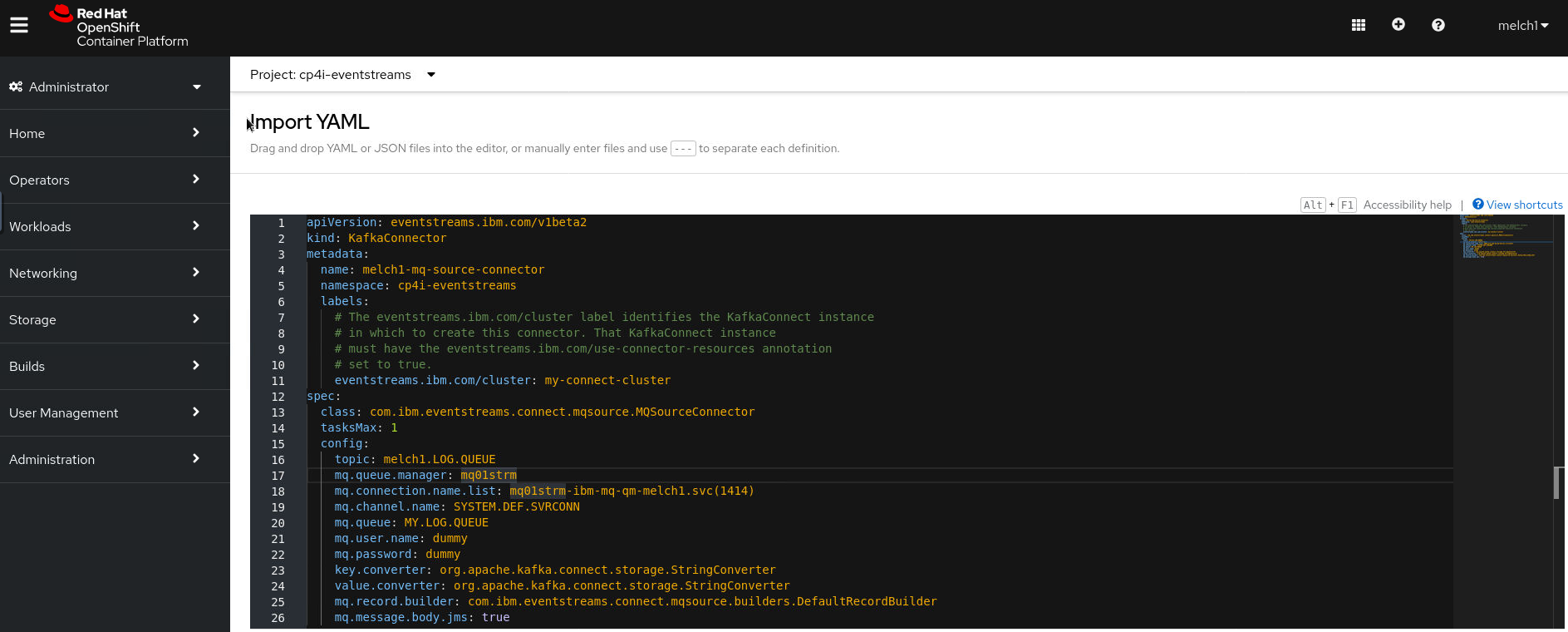
- Paste the yaml into the import YAML screen and make your updates. Go to the bottom of screen and click Create
NOTE: The following is example using the student1 userid.
4. MQSOURCE Connector Readiness Check
From the OpenShift Console;
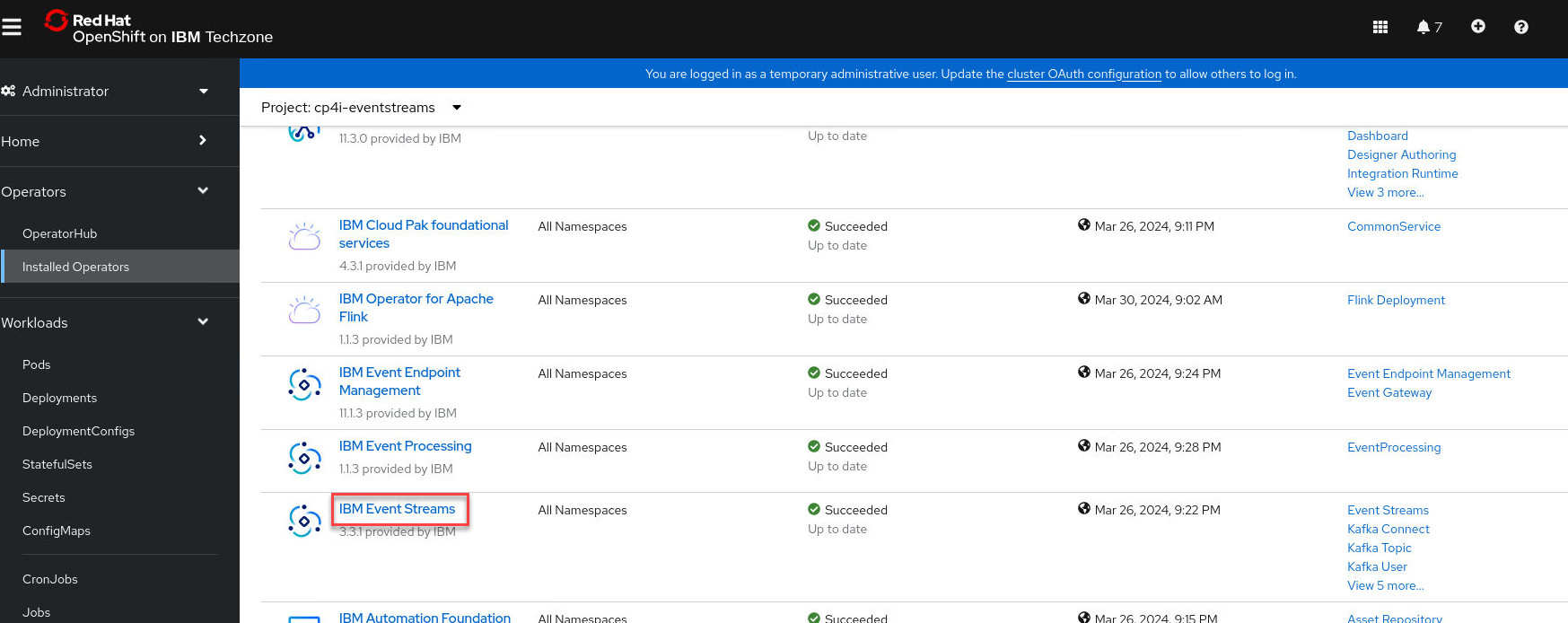
a) Navigate to Operators > Installed Operators
b) Change project to cp4i-eventstreams
c) Click on “IBM Event Streams” Operator
d) Click on “Kafka Connector” tab
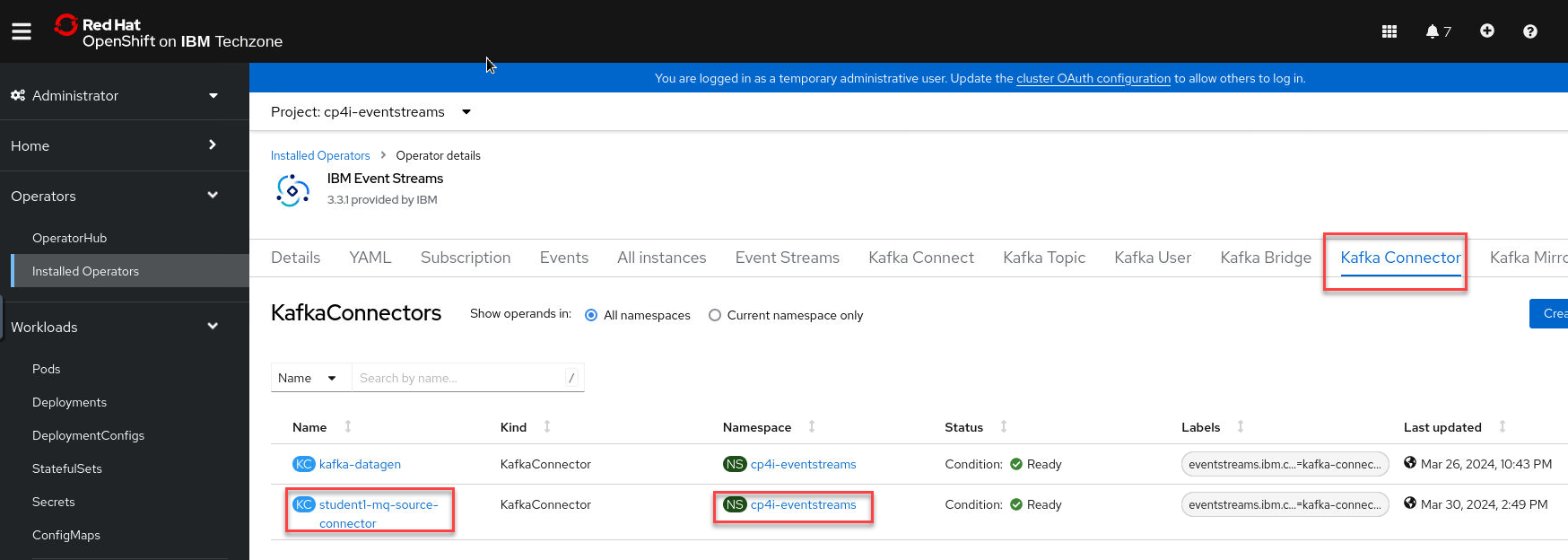
Make sure the student(n)-mq-source-connector is in Ready state
Note This can take up to 6 minutes to complete.
5. Put Sample messages into MQ Queue
Put messages on the application queue
-
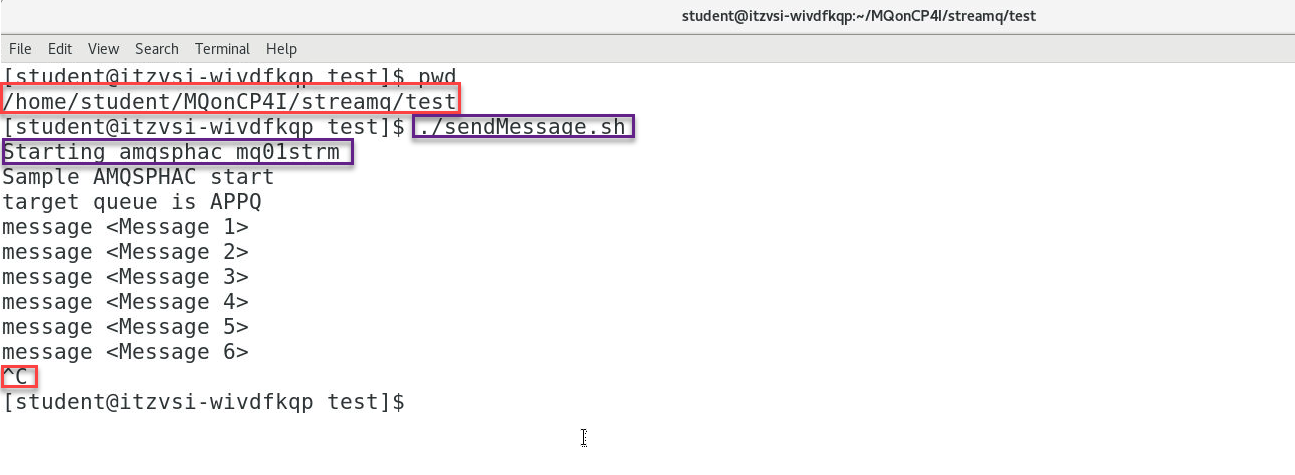
In the terminal window from the previous lab run the test again to put messages on the queue in the ./test directory initiate the testing by running the following command:
The script will then connect to MQ and start sending messages incessantly. Leave this window open to keep sending messages.
sendMessage.sh uses the amqsphac sample application shipped with MQ to put some messages to the application queue APPQ.
The script will not put any messages directly to MY.LOG.QUEUE – the queue manager will do that for us.
After a number of messages have been put, end the script with CTRL-C. Leave the terminal window open.
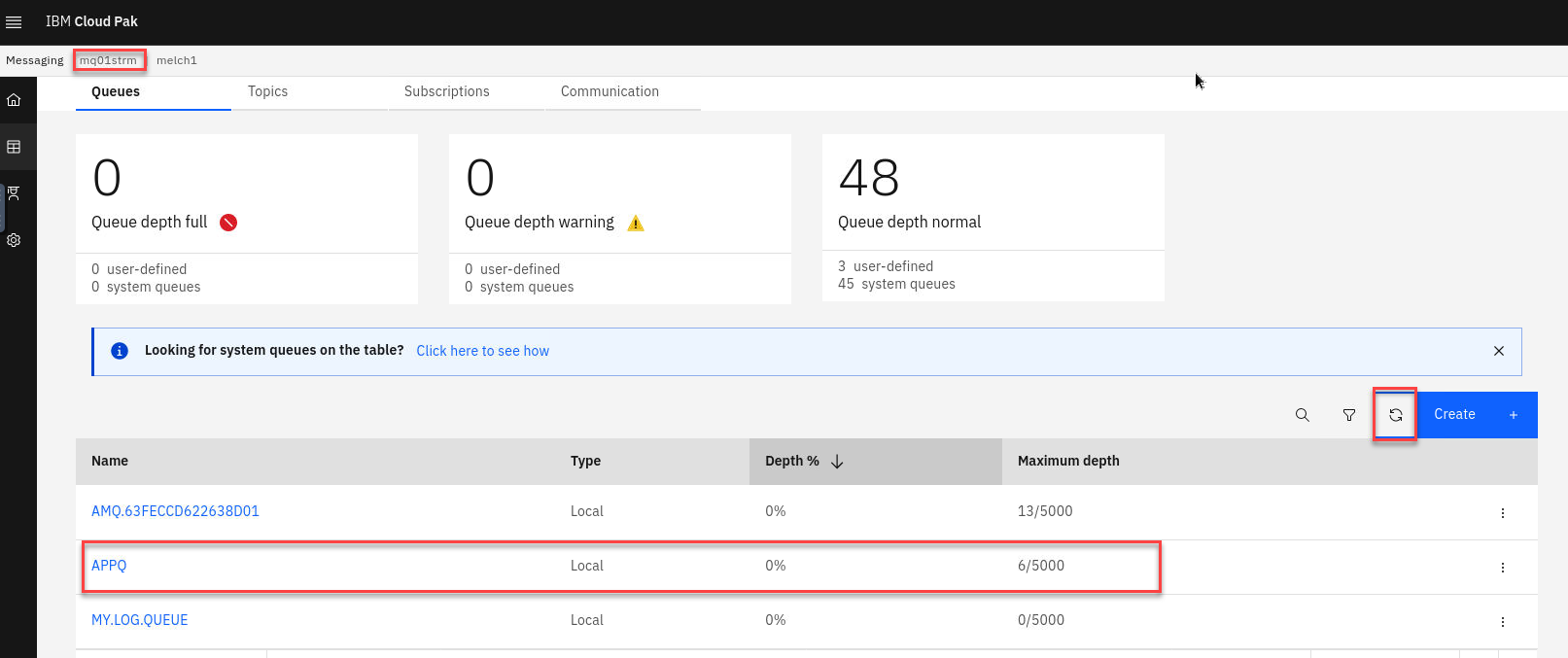
- Now go to the MQ Console and select the MQ Stream Qmgr. You will see the messages that were put to the APPQ. You will see no messages on the MY.LOG.QUEUE since those have now been published on Kafka.After a number of messages have been put, end the script with
. Leave the terminal window open.
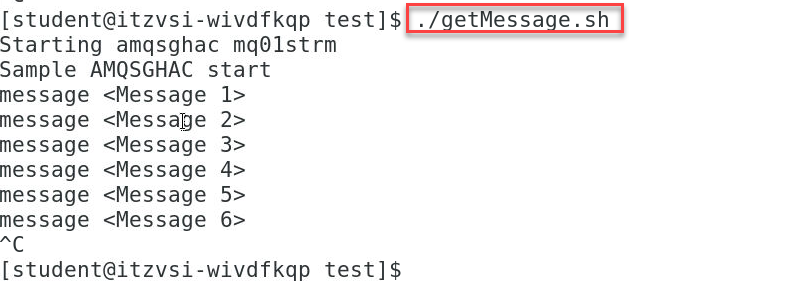
- Now you can go back to the terminal and run the getMessage.sh which will consume the messages from the APPQ
6. Verify Topic data in IBM Event Streams
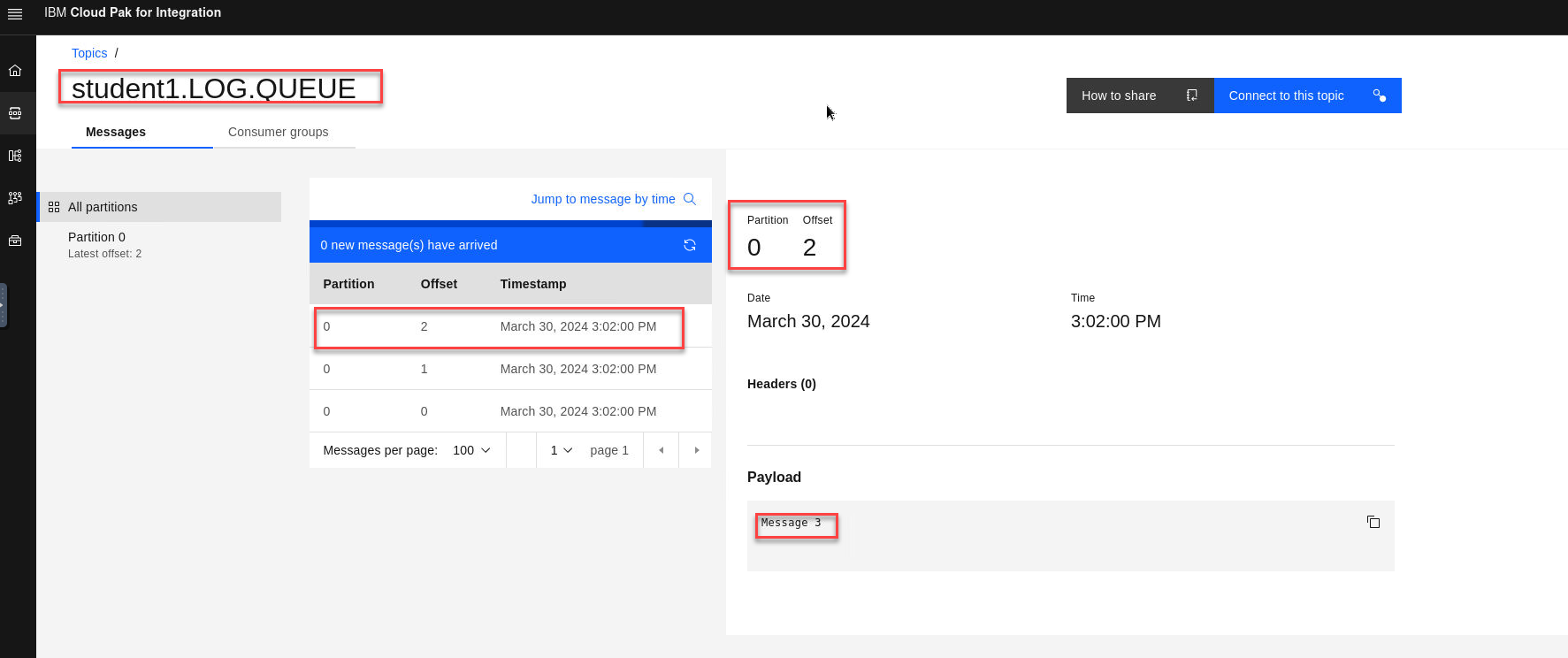
- Now go to the Event Streams Console and select your topic (username).LOG.QUEUE. You will see the messages that were put to the MY.LOG.QUEUE now streamed to your kafka topic.
Congratulations !!!
Cleanup
-
Close all the applications and terminal windows.
-
In a terminal navigate to /home/ibmuser/MQonCP4I/streamq/deploy:
cd ~/MQonCP4I/streamq/deployRun the cleanup.sh script now to delete the streamq queue manager. You will need to pass the 2 args to this script, your student number and your namespace.
./cleanup.sh