IBM Integration PoT Labs Home page
Lab 1A - NativeHA: Deploying a container Native HA persistent IBM MQ Queue Manager on the Cloud Pak for Integration
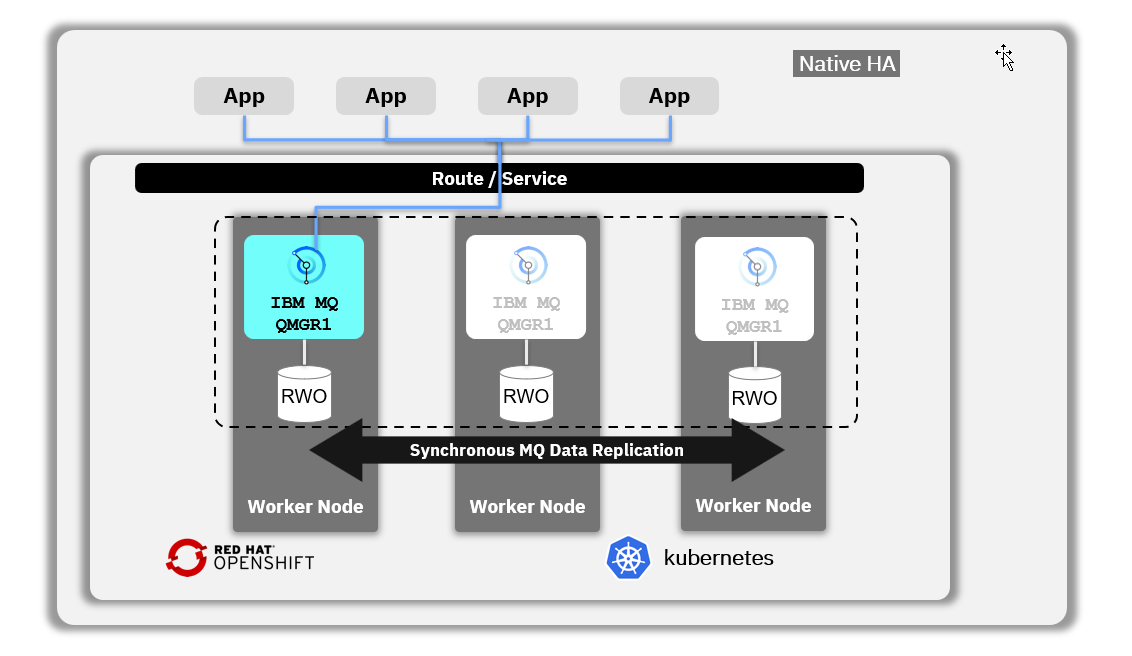
These instructions will document the process to deploy a NativeHA highly available (HA) persistent IBM MQ on the Cloud Pak for Integration.
A Native HA configuration provides a highly available queue manager where the recoverable MQ data (for example, the messages) are replicated across multiple sets of storage, preventing loss from storage failures. The queue manager consists of multiple running instances, one is the leader, the others are ready to quickly take over in the event of a failure, maximizing access to the queue manager and its messages.
A Native HA configuration consists of three Kubernetes pods, each with an instance of the queue manager. One instance is the active queue manager, processing messages and writing to its recovery log. Whenever the recovery log is written, the active queue manager sends the data to the other two instances, known as replicas. Each replica writes to its own recovery log, acknowledges the data, and then updates its own queue data from the replicated recovery log. If the pod running the active queue manager fails, one of the replica instances of the queue manager takes over the active role and has current data to operate with.
A Kubernetes Service is used to route TCP/IP client connections to the current active instance, which is identified as being the only pod which is ready for network traffic. This happens without the need for the client application to be aware of the different instances.
Three pods are used to greatly reduce the possibility of a split-brain situation arising. In a two-pod high availability system split-brain could occur when the connectivity between the two pods breaks. With no connectivity, both pods could run the queue manager at the same time, accumulating different data. When connection is restored, there would be two different versions of the data (a ‘split-brain’), and manual intervention is required to decide which data set to keep, and which to discard. Native HA uses a three pod system with quorum to avoid the split-brain situation.
Pre-reqs
You should have already downloaded the artifacts for this lab in the lab Environment Setup from GitHub MQonCP4I.
If you are doing this lab out of order return to Environment Setup to perform the download. Then continue from here.
Important points to note
The lab guide assumes you are using the RHEL desktop VM from the IBM TechZone.
Note: The screen shots were taken on a test cluster and many will not match what you see when running the lab. Particularly URL values will be different depending on the cluster where CP4I is running. Projects (Namespaces) may also vary. It is important to follow the directions, not the pictures.
Deploy the MQ nativeHA Queue Manager with associated resources
-
Navigate to the nativeha-crr directory with the following command to get to the correct directory and enter the ls -l command:
cd /home/ibmuser/MQonCP4I/nativeha-crr/deploy ls -l -
You will see the 1-live
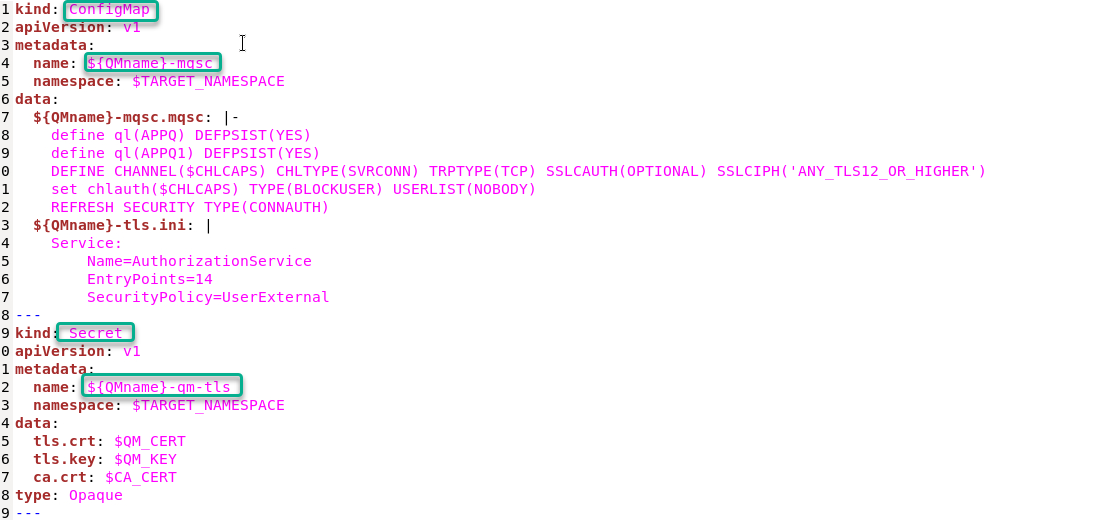
 There is nothing to change here since the MQ_Setup.sh built this for you, but it is necessary to review how the queue manager is created by the yaml code. The first Kubernetes API is a ConfigMap named (QMGR Name)-mqsc
(ex: mq01ha-mqsc).
This creates a file of mqsc commands to define MQ objects in the queue manager. The second Kubernetes API is a Secret called (QMGR Name)-qm-tls
(ex: mq01ha-qm-tls).
This includes three files to build the secret. tls.crt is the signer certificate for the queue manager and tls.key is the queue manager’s private key. nativehamqsc and nativehacert will be used to define the third Kubernetes kind, the queue manager itself.
-
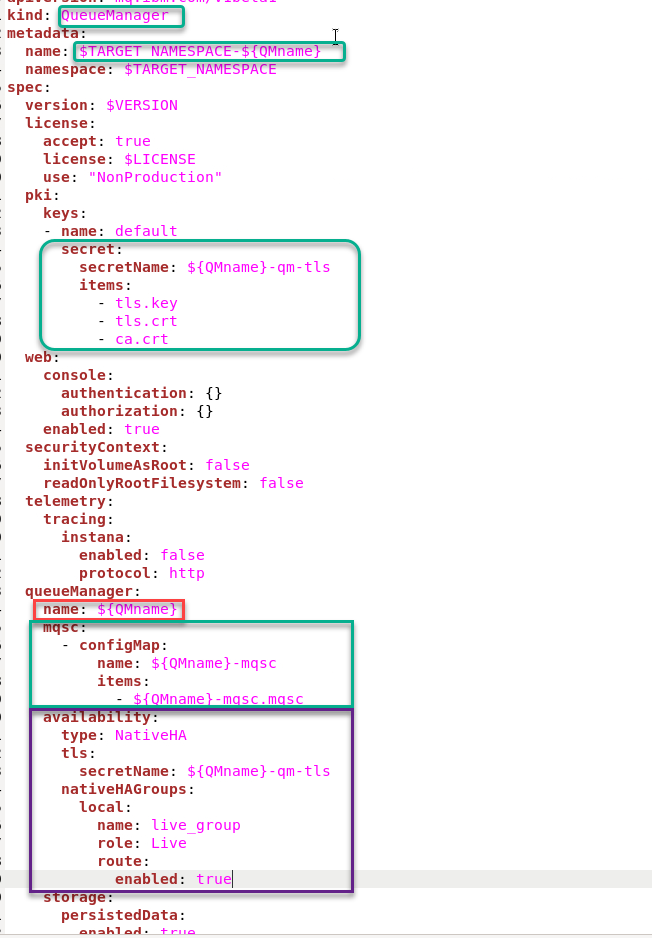
Native HA is configured using the .spec.queueManager.availability of the QueueManager API. Scroll down to the kind: QueueManager. QMname takes the value from the install.sh script so mq00ha (substituted with your student number) will be the name of the deployment and the name of the queue manager. Under spec, version is being substituted by the variable defined in install.sh and includes the license value. pki pulls in the secret defined earlier. queuemanager pulls in the mqsc definitions defined earlier and availability shows type NativeHA. This tells the MQ Operator to implement the native HA pattern and will create three pods running the same queue manager with replicated data.
There is nothing to change so just close the yaml file.
-
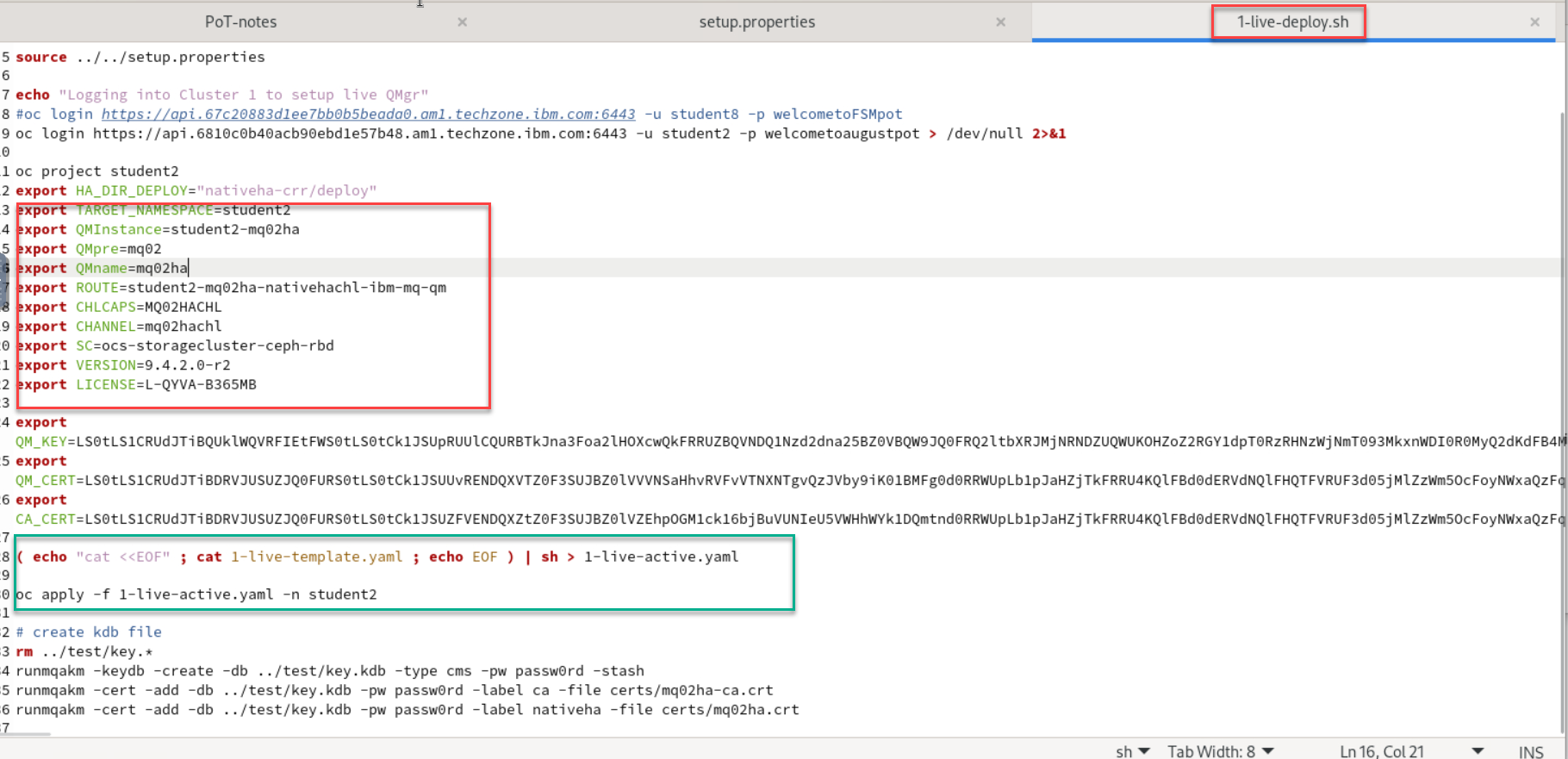
Looking again at *1-live-deploy.sh *, you will see the 1-live-template.yaml which is used to create the 1-live-active.yaml and that is then applied to create the queue manager.
You can now close the gedit editor.
### Login to OCP Console to get login token
-
In OCP console, click the drop-down next to your username and select “Copy Login Command”.
Note: Make sure that you are in the correct namespace. Here in this example I am student1

-
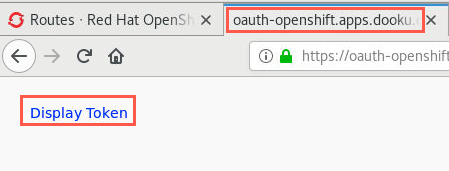
A new browser tab opens. Click the Display Token hyperlink.
-
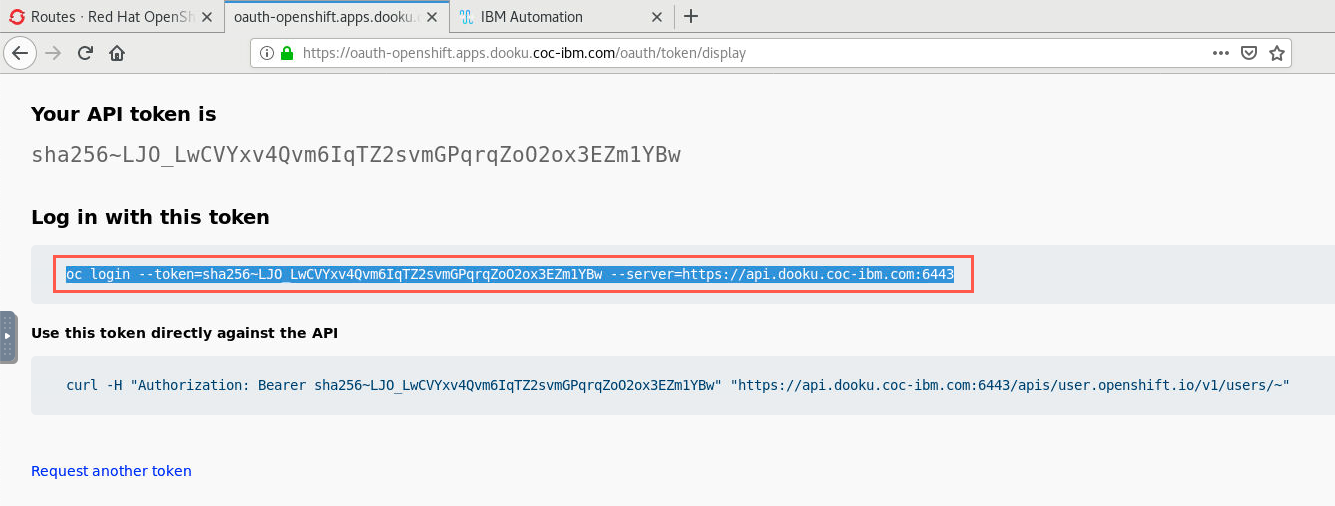
Copy the command under “Log in with this token”.
-
Open a terminal window and paste the command into the terminal and hit enter which logs you into the cluster. Enter the following command to change to your namespace. Here we are using namespace student1
oc project student1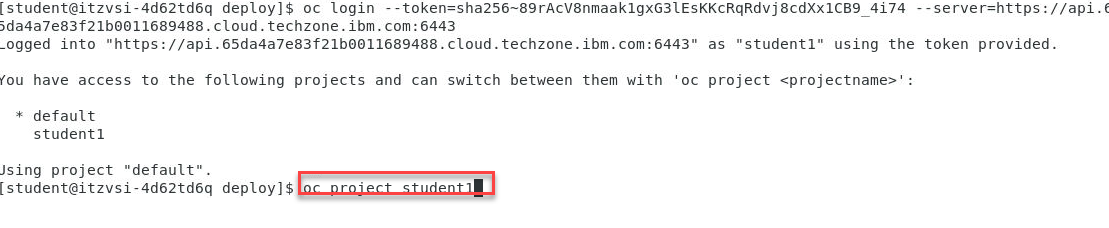
-
Now we will go to the deployment for nativeha-crr directory. Will see all the scripts that were created earlier when you ran the MQ_setup.sh
We will in this lab only be focused on the 1-live-deploy.sh script.
Change to the correct directory and run the ./1-live-deploy.sh script to create your HA Qmgr.
cd ~/MQonCP4I/nativeha-crr/deploy./1-live-deploy.sh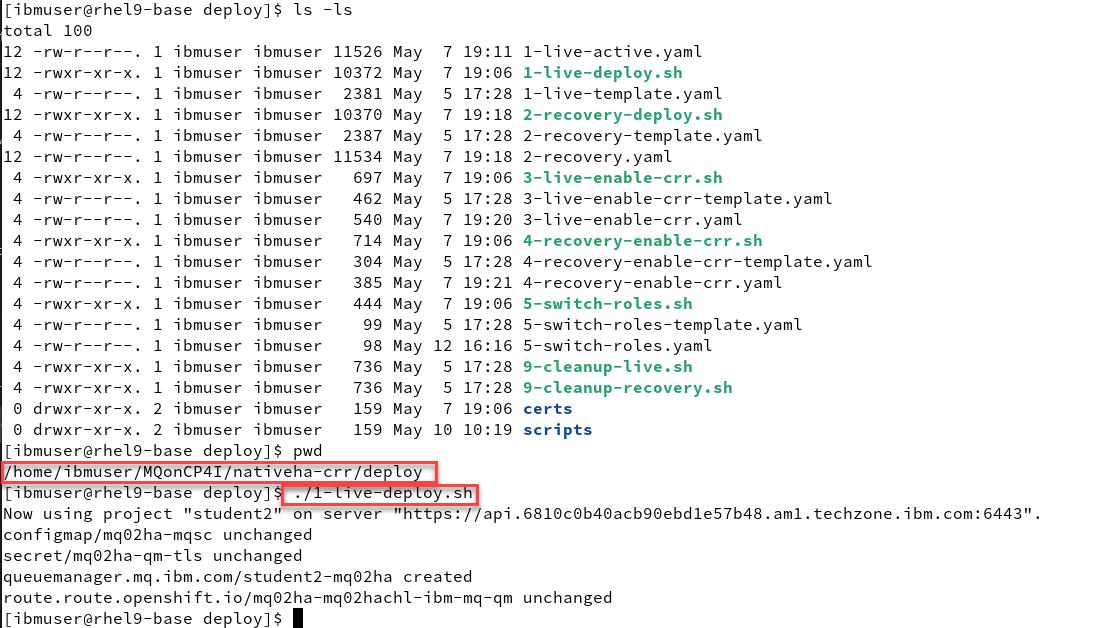
The response is that the configmap, secret, and queue manager were successfully created.
-
Now we will login to the OCP console using are student account. In the screen shots we are using student1 . Make sure you use your assigned student id. Also make sure to use Enterprise LDAP when logging in.
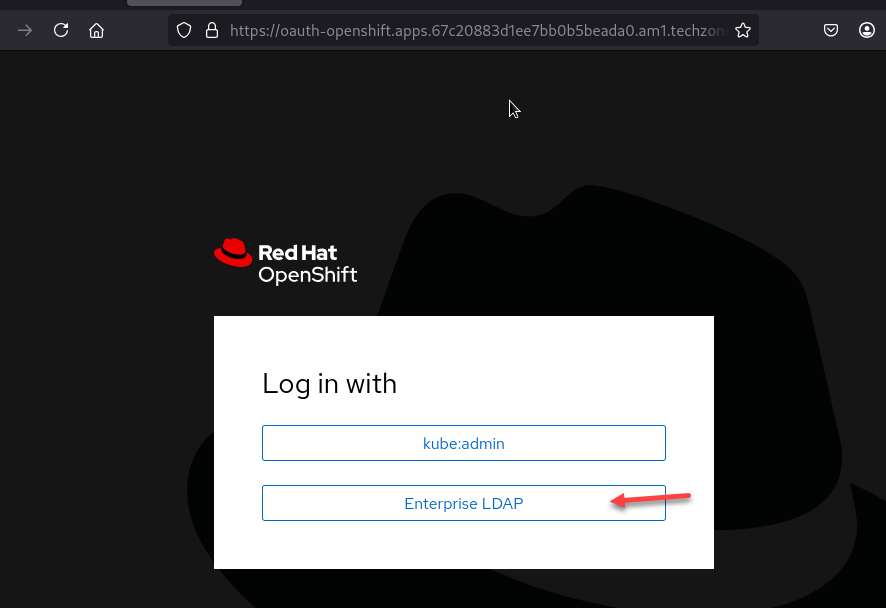
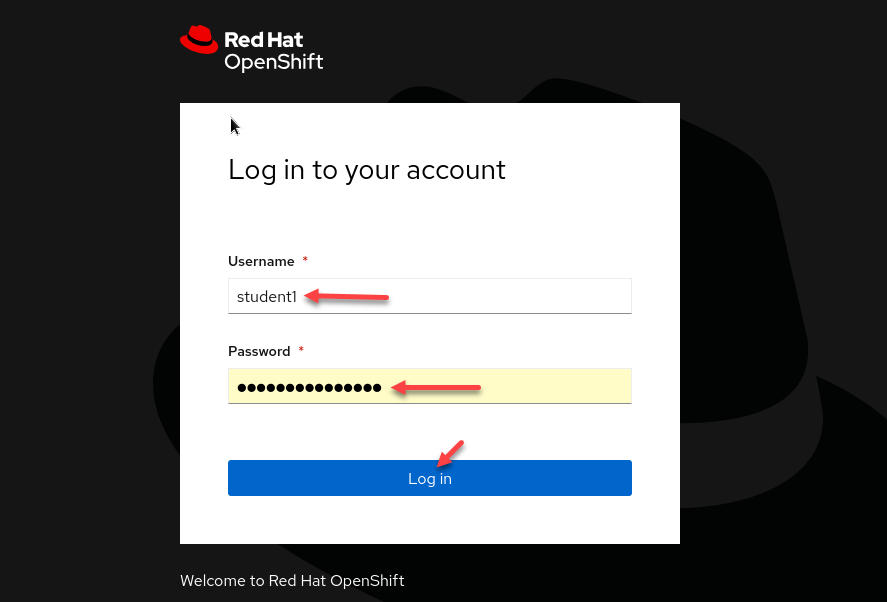
-
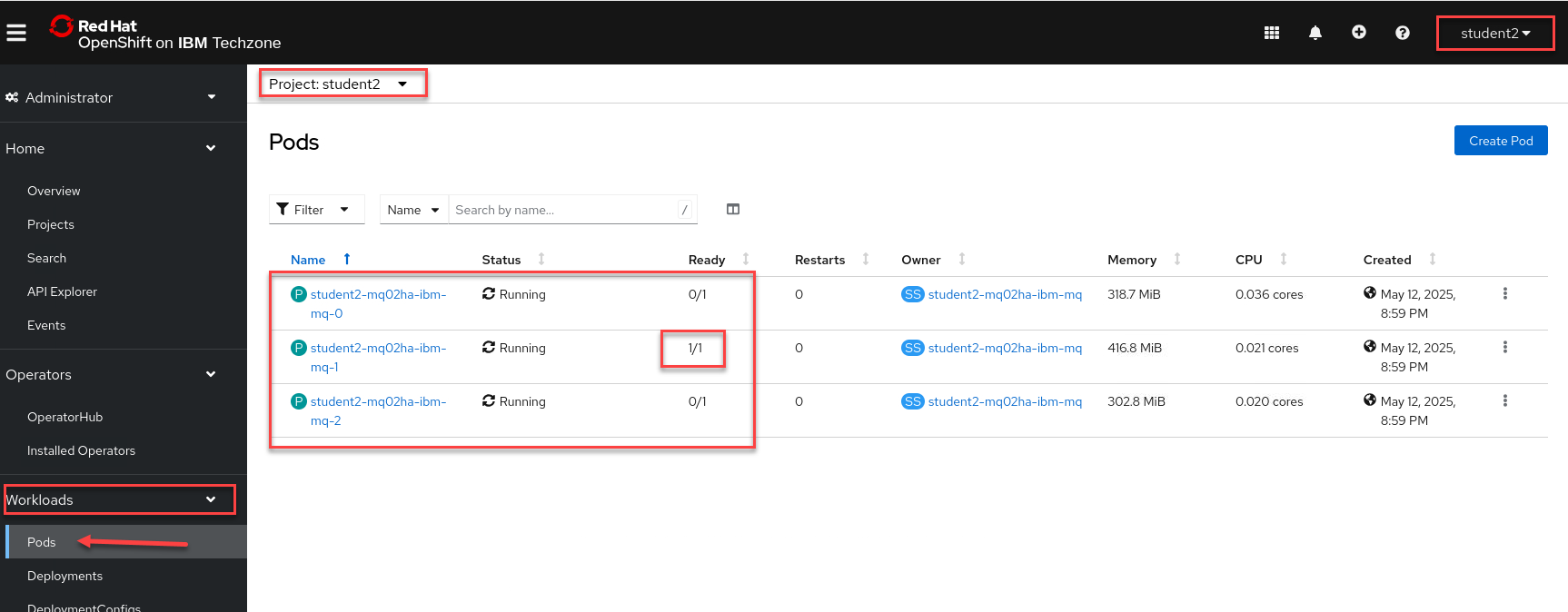
Once logged in make sure you are in your namespace/project. Then on the left hand side select Workloads and select Pods
You should see your 3 pods running for your QMGr. Notice that one of them is showing ready state of 1/1. That is your active running QMgr and the others are standbys.
Explore the queue manager
MQ Console
To access the queue manager and the MQ Console, you need to go to the CP4I Platform Navigator.
-
From the Platform Navigator make sure you are login as the correct userid and in the filter section enter your userid so you will only see your components.
Right click on your navtiveHA QMgr link and open in new tab.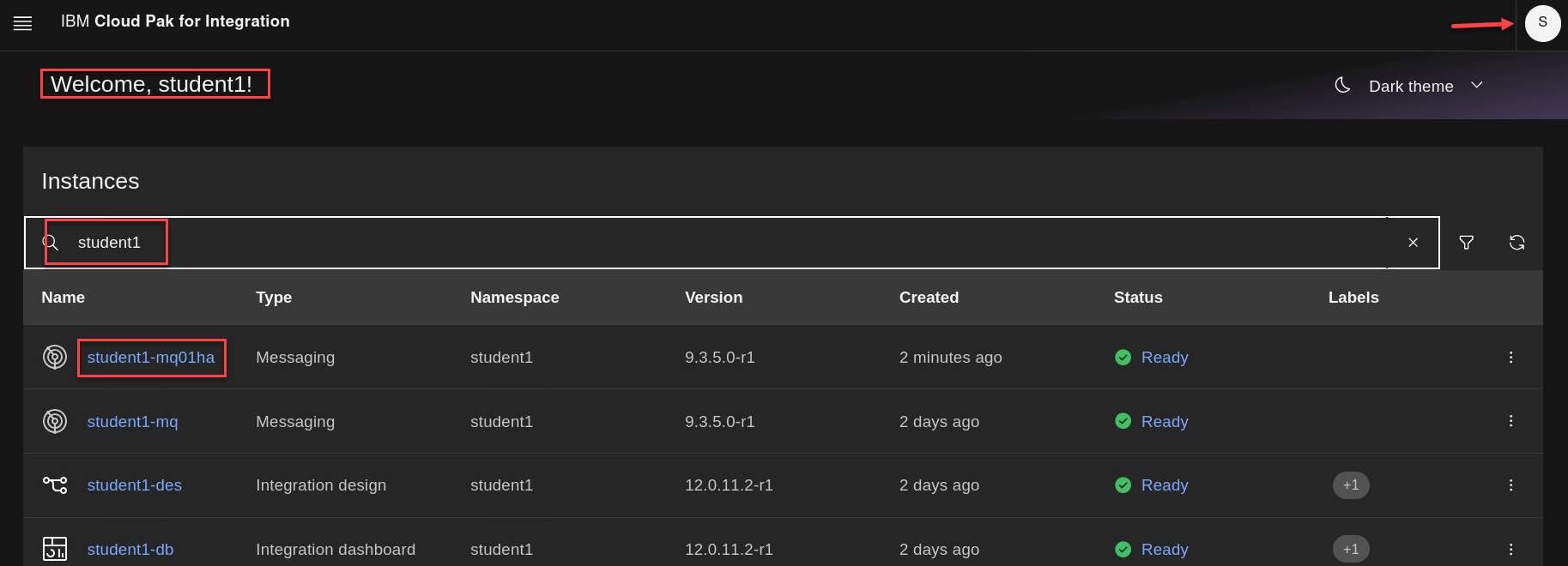
-
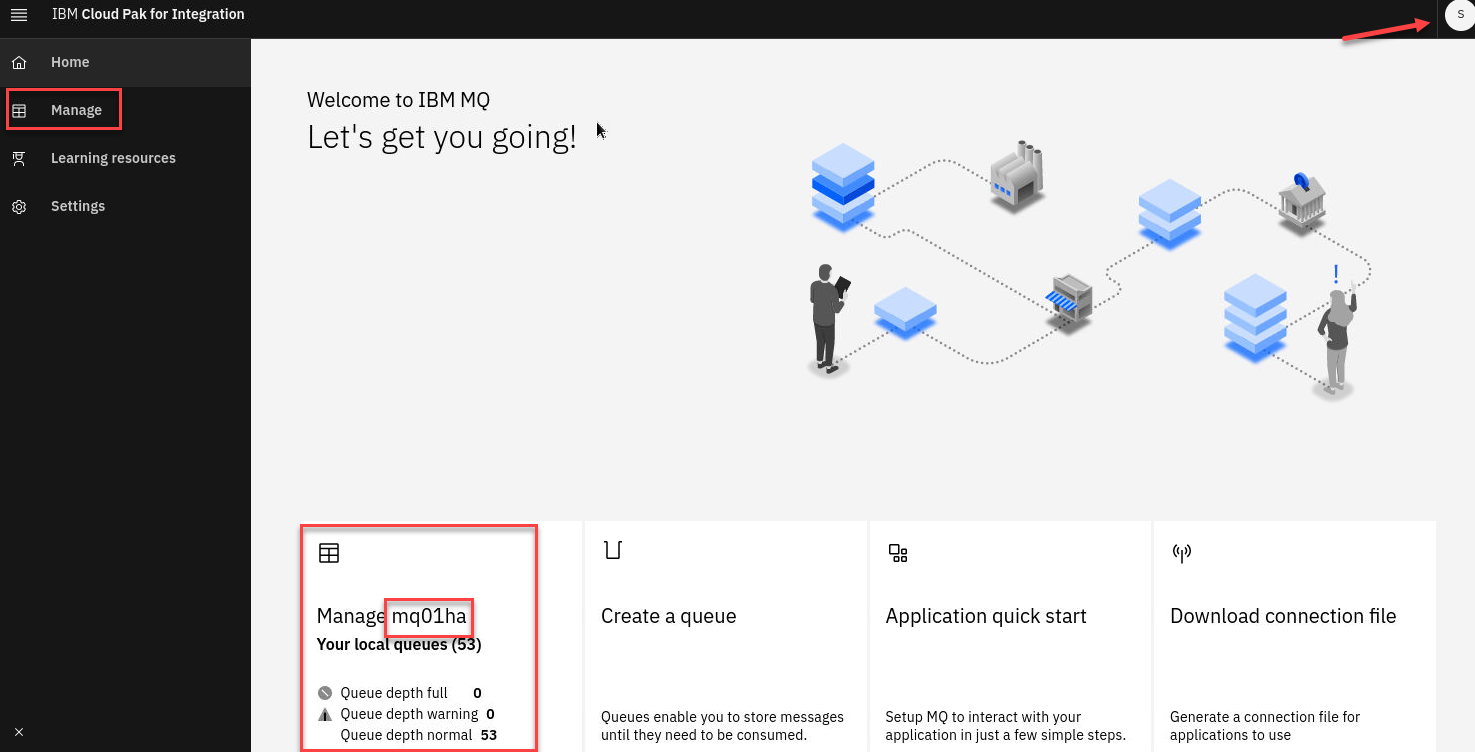
The MQ Console is now opened for for your queue manager. In this example it is the Qmgr for student1 mq01ha
(Example: if you are student5 you will see mq05ha)
Click the Manage icon.
-
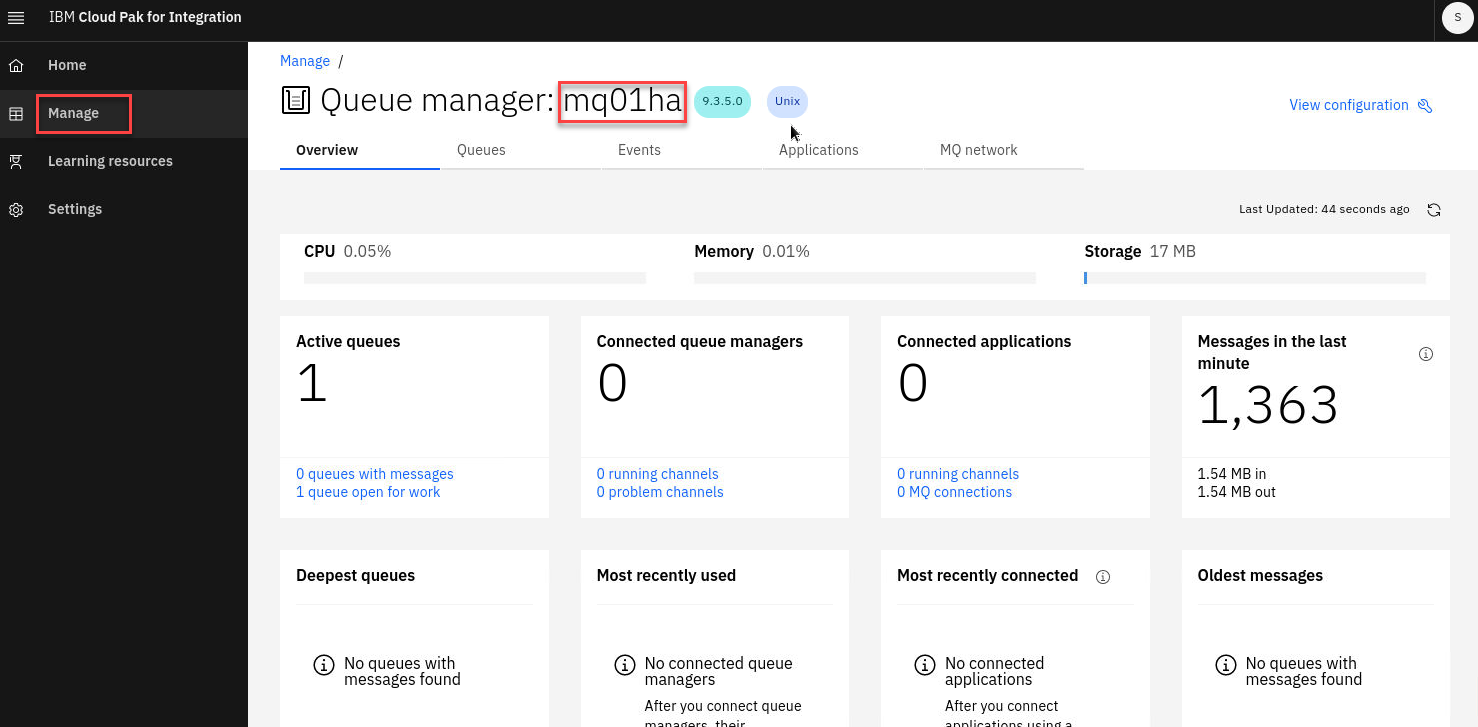
The Manage page has tabs for Queues, Events, Applications, and MQ network. The main page here has several new tiles showing varies status of the QMgr.
-
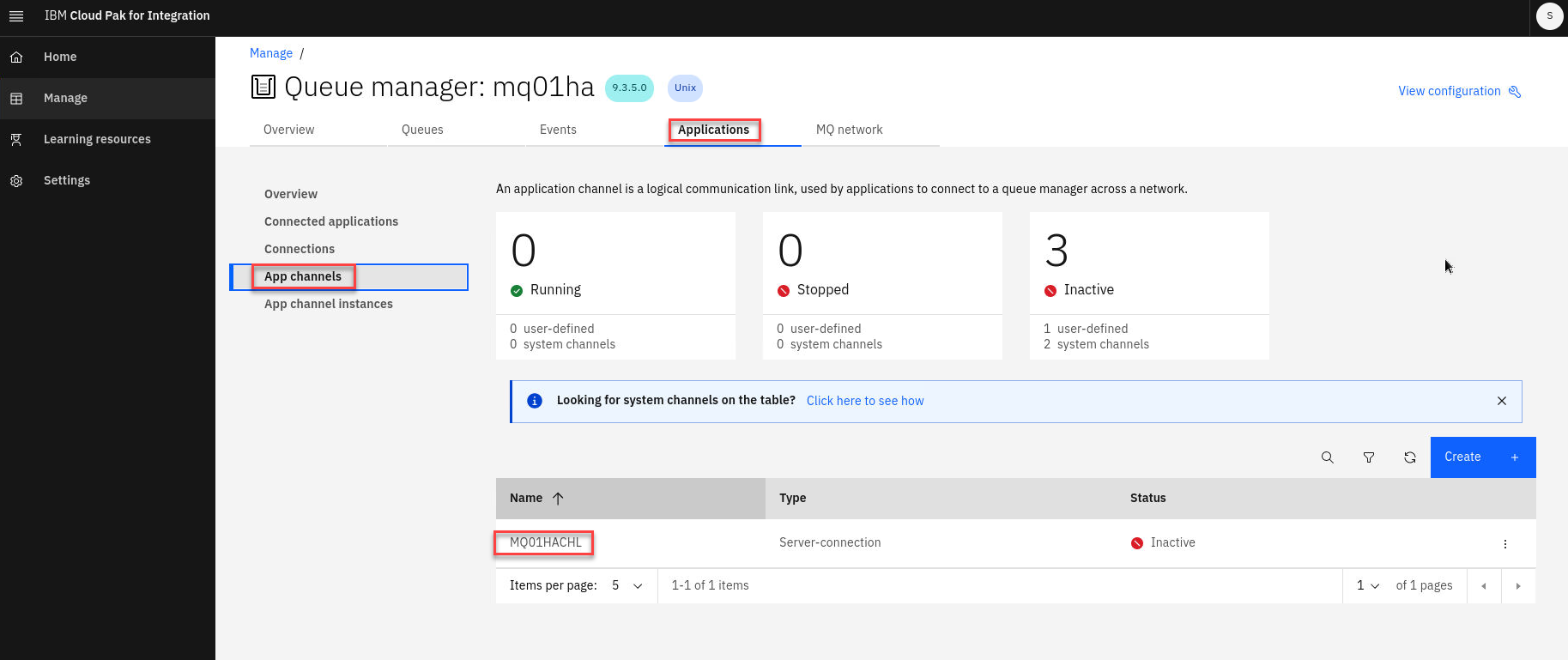
Click Applications tab and then select App channels. Here you see MQ01HACHL which was defined in the Queue Manager stanza of the yaml.
Note: Remember that depending on your student number you will see something different then 01.
-
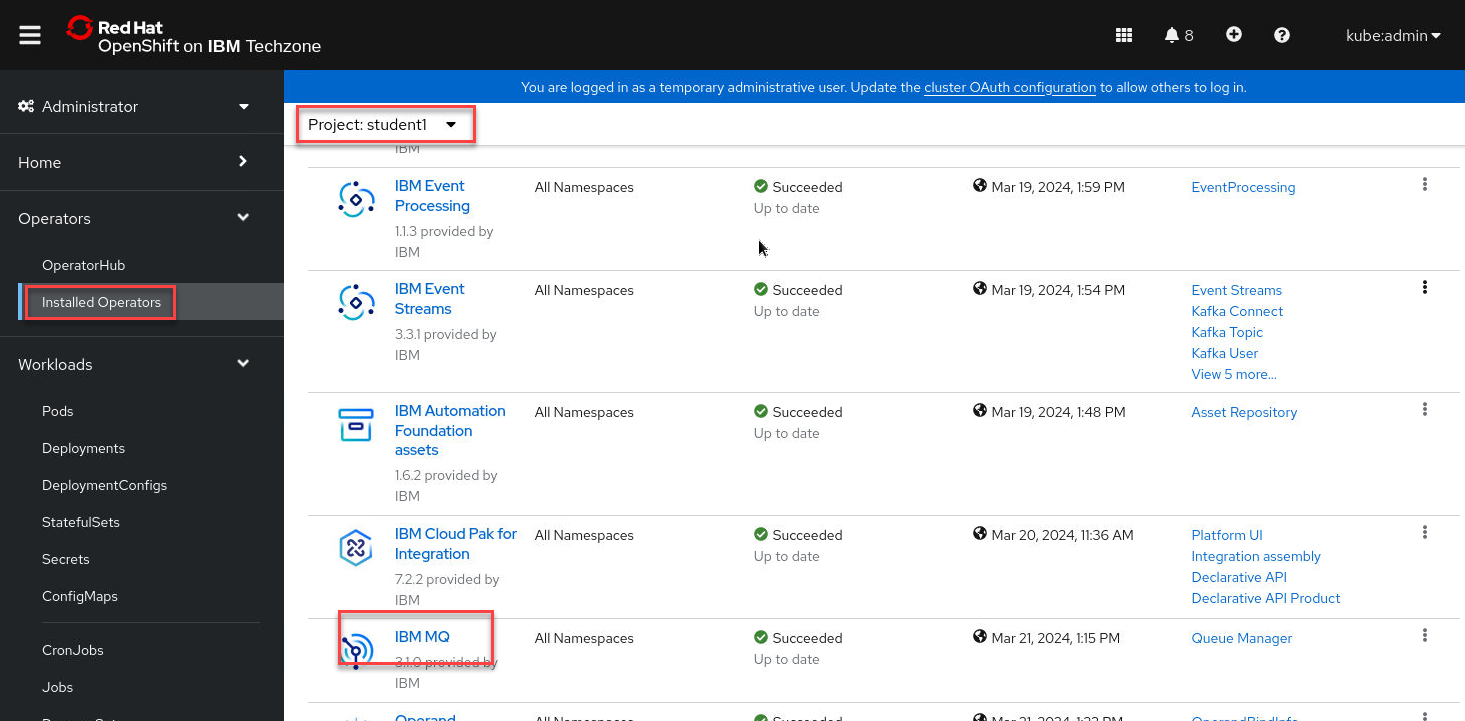
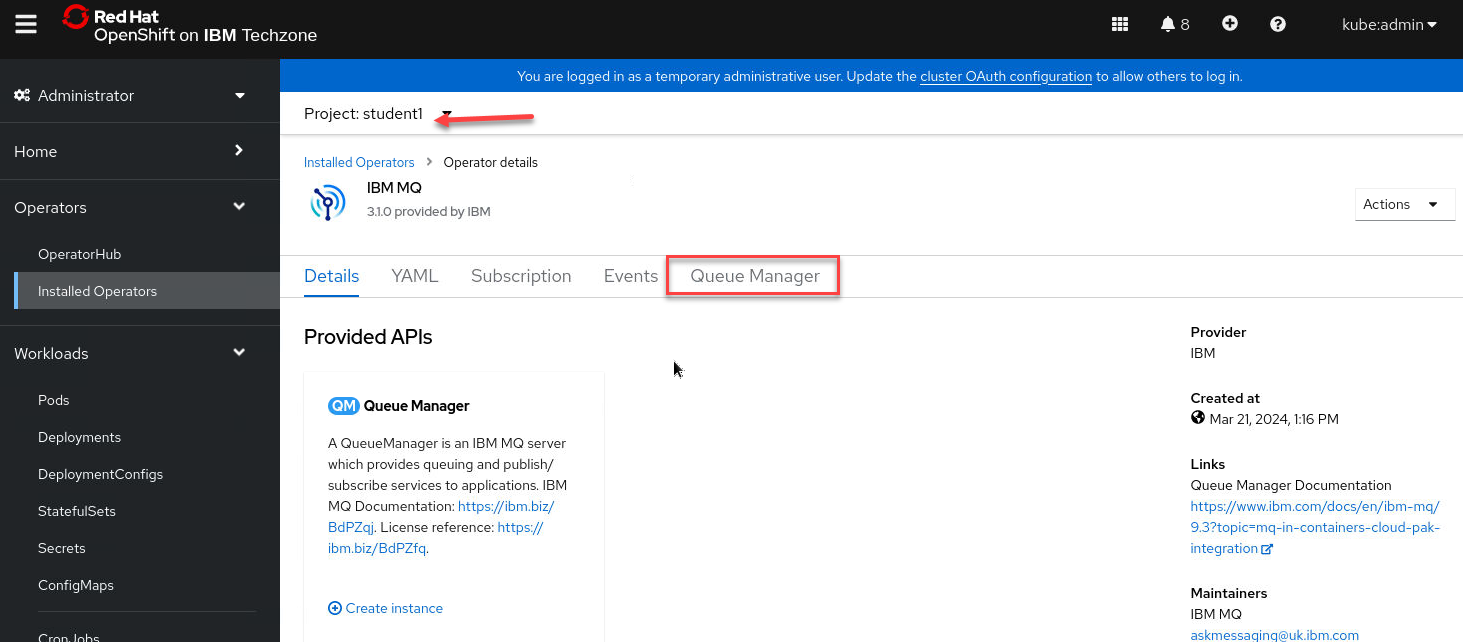
In the OCP Console, change the project to your namespace, for example student1. Click the drop-down for Operators then select Installed Operators. Scroll to the bottom and click the hyperlink for IBM MQ.
-
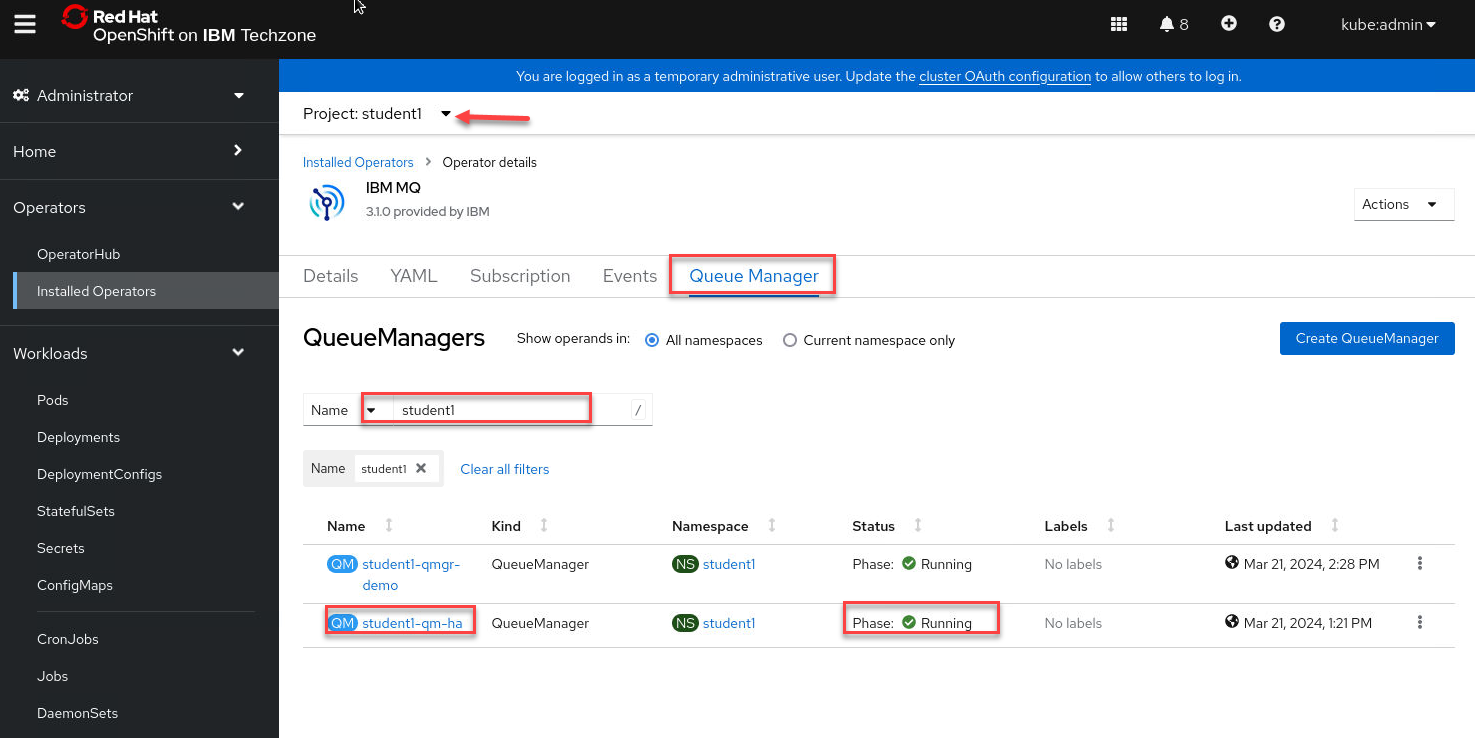
You can browse the details about the MQ Operator, then click Queue Manager. You see your queue manager student1-mq01ha and it is Running. Any other queue managers running in the namespace will also be displayed.
Click the hyperlink for student1-mq01ha.
-
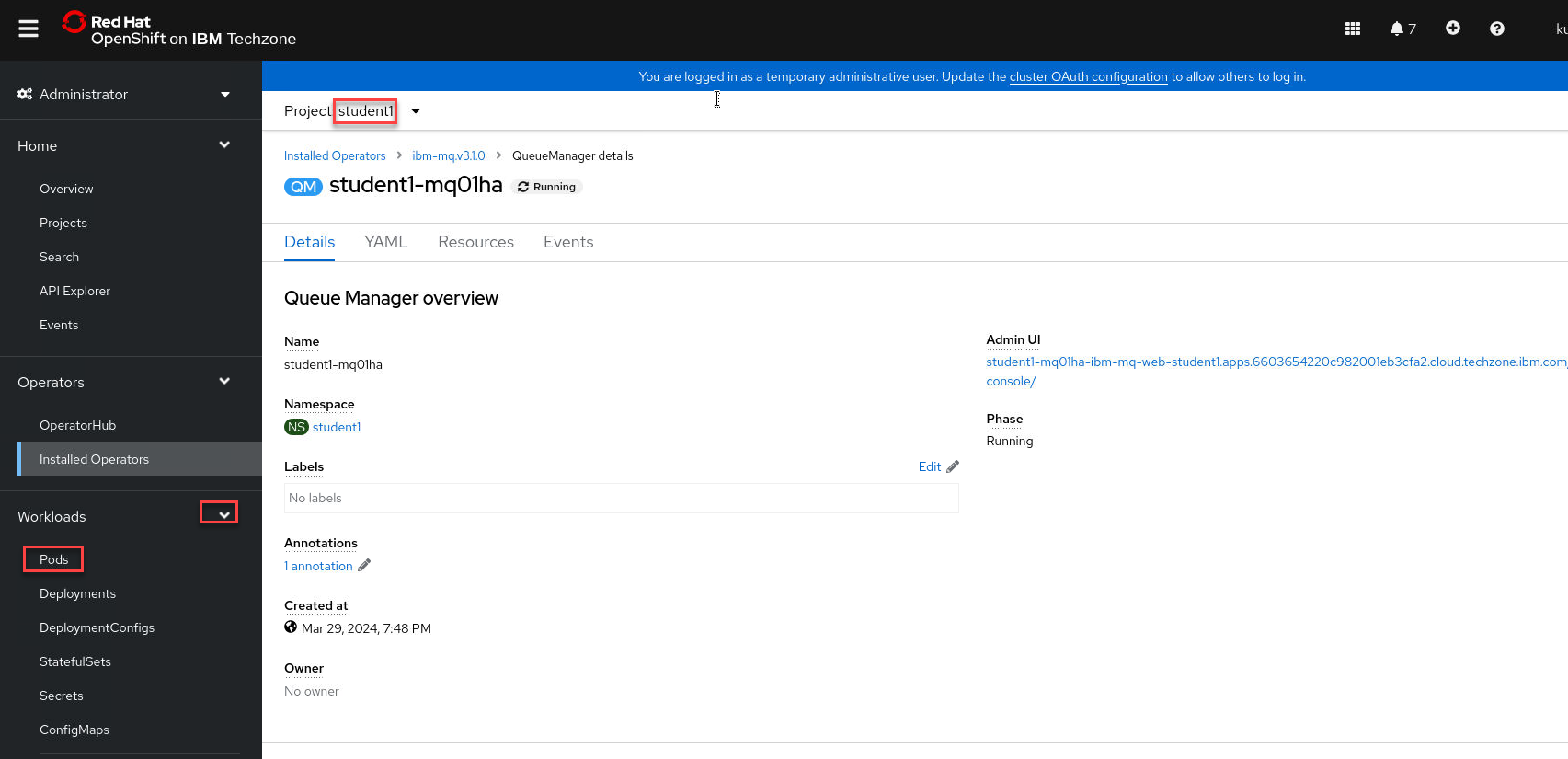
The details and properties for the queue manager are displayed. Review by scrolling through the details. You can also see the yaml that for the queue manager object.
After reviewing, click the drop-down for Workloads and select Pods.
-
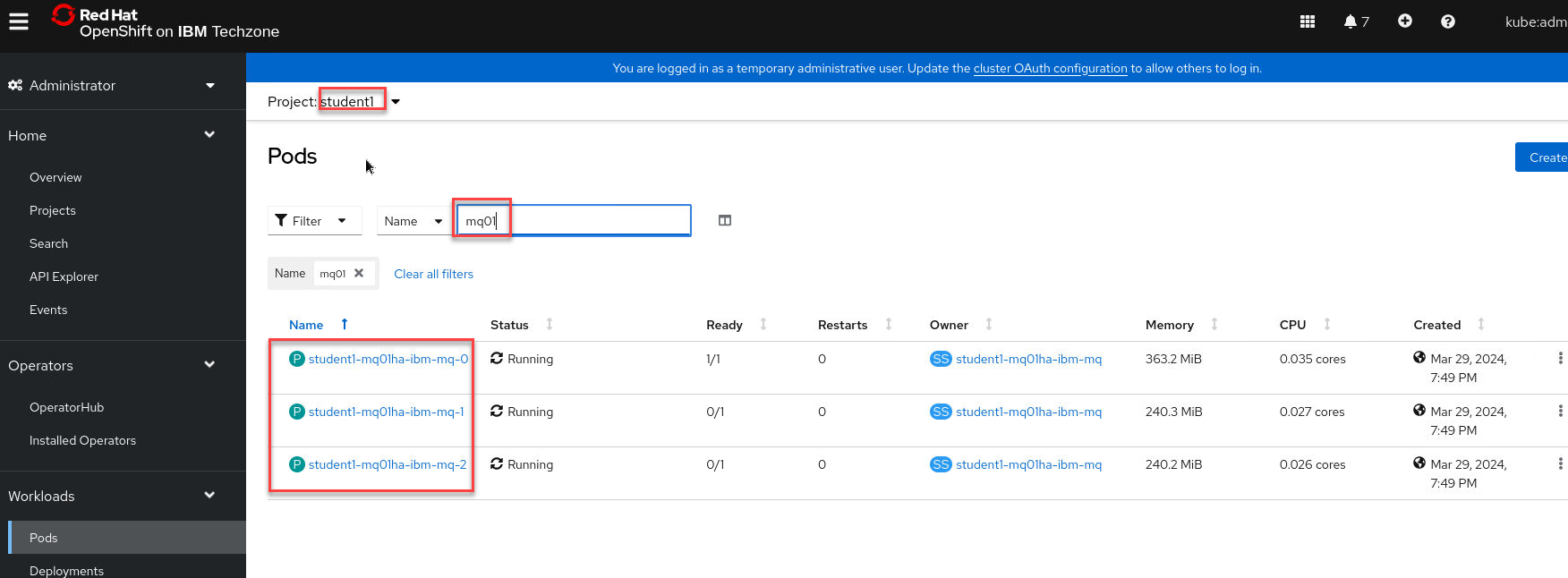
Type mq01 (your student number in place of 05) in the filter so you will only see the pods for your queue manger. As expected you will see three pods for the nativeha queue manager. One of the pods has 1 of 1 containers running. Two of the pods have 0 of 1 containers running. This is the nature of nativeHA, one pod running the queue manager and data being replicated to the other two pods which are in standby mode.
-
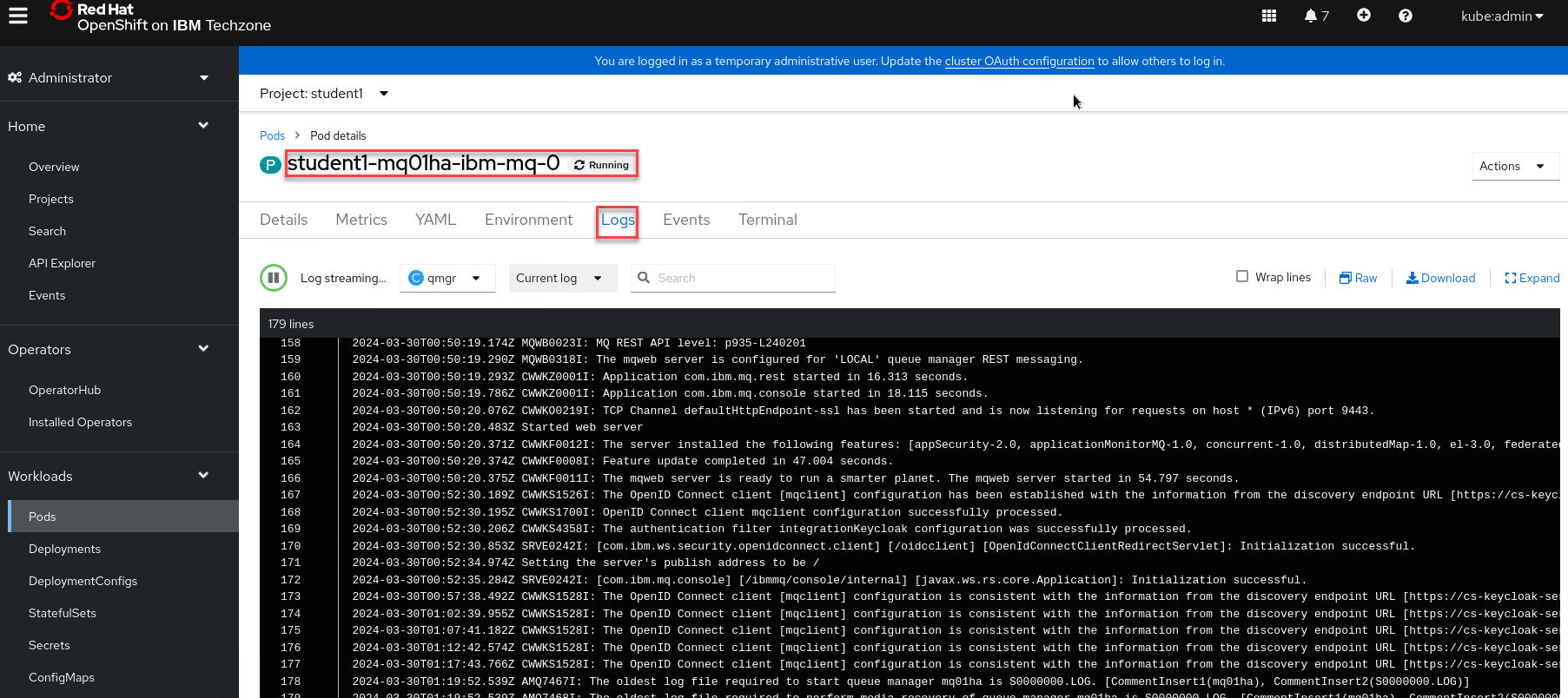
If you click the hyperlink for the running pod, you will see its details and the logs. Click Logs to review the messages. Below is a sample from pod student1-mq01ha-ibm-mq-0 where you can see the messages involved with HA.
-
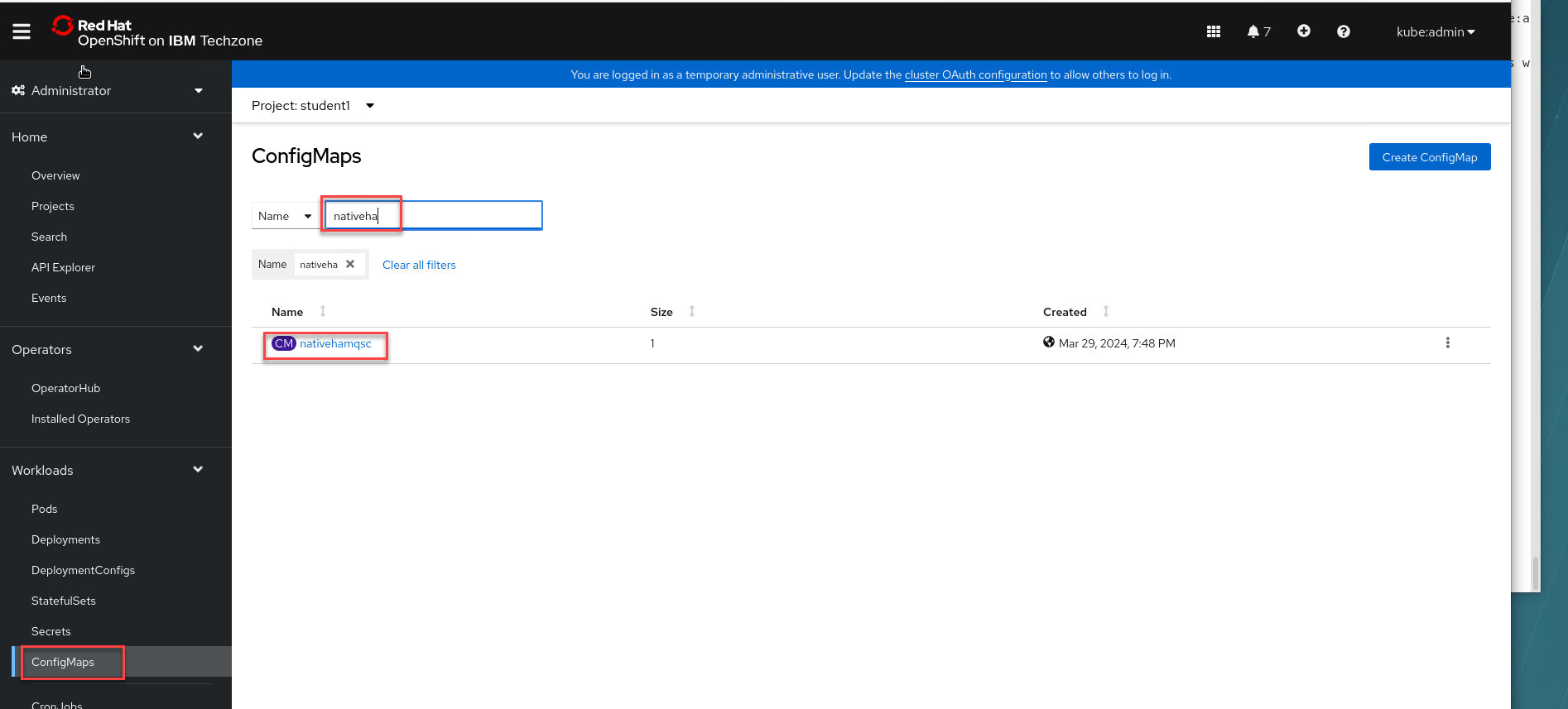
Under Workloads click ConfigMaps then select nativehamqsc.
-
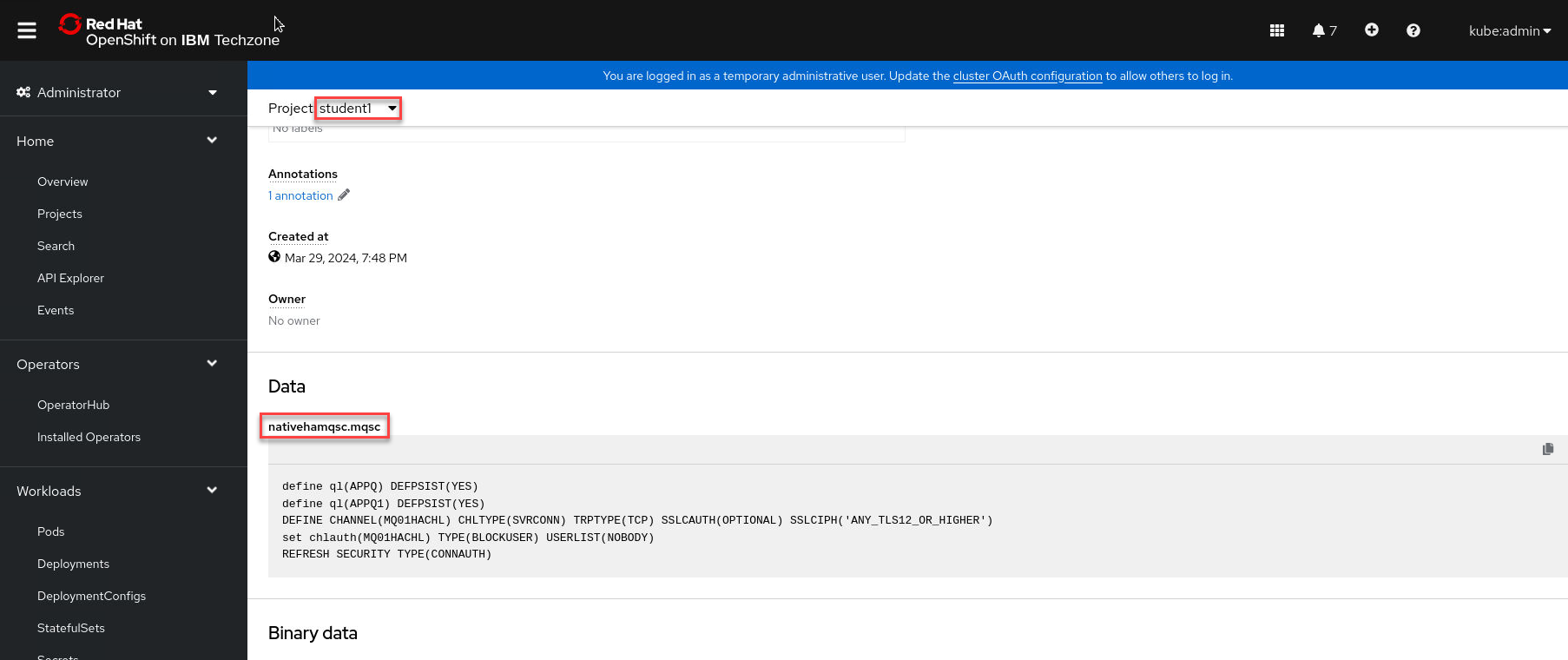
Scroll down to Data and you will see the mqsc statements to define the queue manager objects.
Viewing the status of Native HA queue managers
You can view the status of the Native HA instances by running the dspmq command inside one of the running Pods.
You can use the dspmq command in one of the running Pods to view the operational status of a queue manager instance. The information returned depends on whether the instance is active or a replica. The information supplied by the active instance is definitive, information from replica nodes might be out of date. You can perform the following actions:
- View whether the queue manager instance on the current node is active or a replica.
- View the Native HA operational status of the instance on the current node.
- View the operational status of all three instances in a Native HA configuration.
The following status fields are used to report Native HA configuration status:
- ROLE Specifies the current role of the instance and is one of Active, Replica, or Unknown.
- INSTANCE The name provided for this instance of the queue manager when it was created using the -lr option of the crtmqm command.
- INSYNC Indicates whether the instance is able to take over as the active instance if required.
- QUORUM Reports the quorum status in the form number_of_instances_in-sync/number_of_instances_configured.
- REPLADDR The replication address of the queue manager instance.
- CONNACTV Indicates whether the node is connected to the active instance.
- BACKLOG Indicates the number of KB that the instance is behind.
- CONNINST Indicates whether the named instance is connected to this instance.
- ALTDATE Indicates the date on which this information was last updated (blank if it has never been updated).
- ALTTIME Indicates the time at which this information was last updated (blank if it has never been updated).
-
Find the pods which are part of your queue manager with the following command:
Note: Remember that depending on your student number you will see something different then 01.
oc get pods --selector app.kubernetes.io/instance=student1-mq01ha
-
Use the following command to run the dspmq command in the active pod:
oc exec -t student1-mq01ha-ibm-mq-0 dspmq
In the active pod the queue manager shows Running.
-
Run the command again but this time in a replica pod.
oc exec -t student1-mq01ha-ibm-mq-1 dspmq
In a replica pod the queue manager shows Replica.
-
To determine Native HA operational status of the instance in the specified pod:
oc rsh student1-mq01ha-ibm-mq-0 dspmq -o nativeha -m mq01ha
Test the deployment
-
Open a new terminal window and navigate to /home/ibmuser/MQonCP4I/nativeha/test directory using the following command:
cd ~/MQonCP4I/nativeha-crr/test -
When you ran the MQ_setup script the following scripts were created in the test directory with your credentials.

-
It is best to open two more terminal windows one for Sending and one for getting messages. Using the followng scripts:
 ./sendMessage-CRR-setup.sh
 ./getMessage-CRR-setup.sh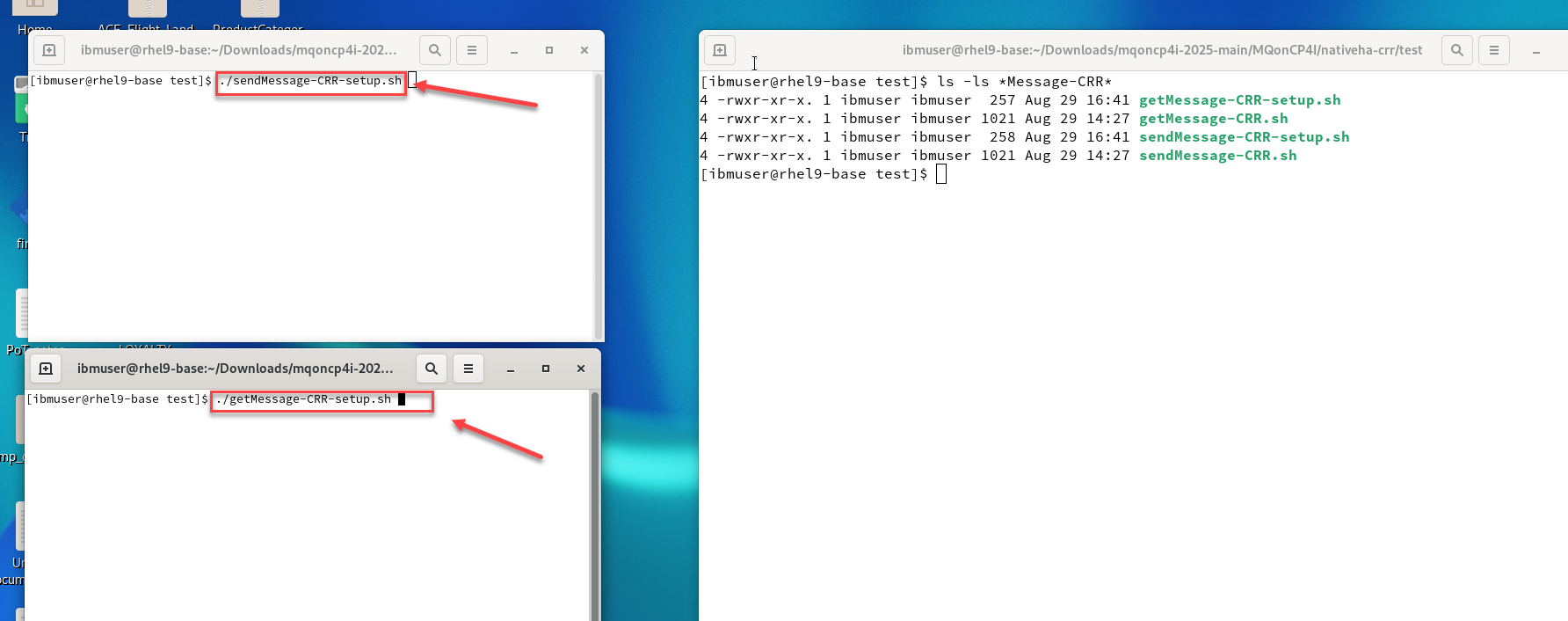
When you start the programs you will see it logs into the cluster and your namespace and will start putting messages and getting messages from your APPQ.
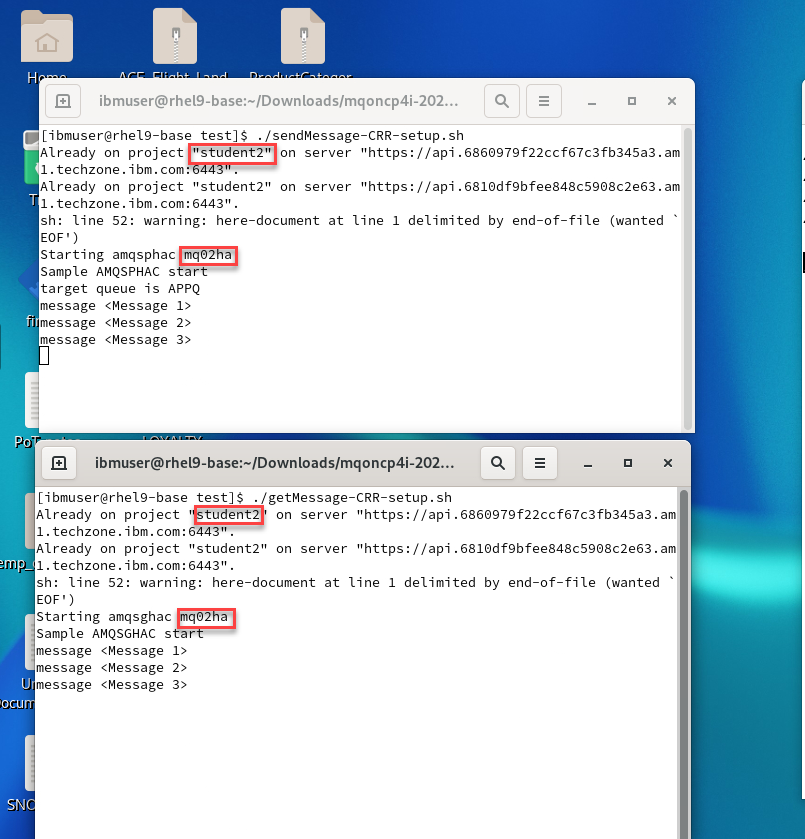
-
Open a new terminal window. To see how the pods work together in action, run the following command to view the current pods:
oc get pod | grep mq02haNOTE: Make sure you change the number from 02 to what ever student # you are using.
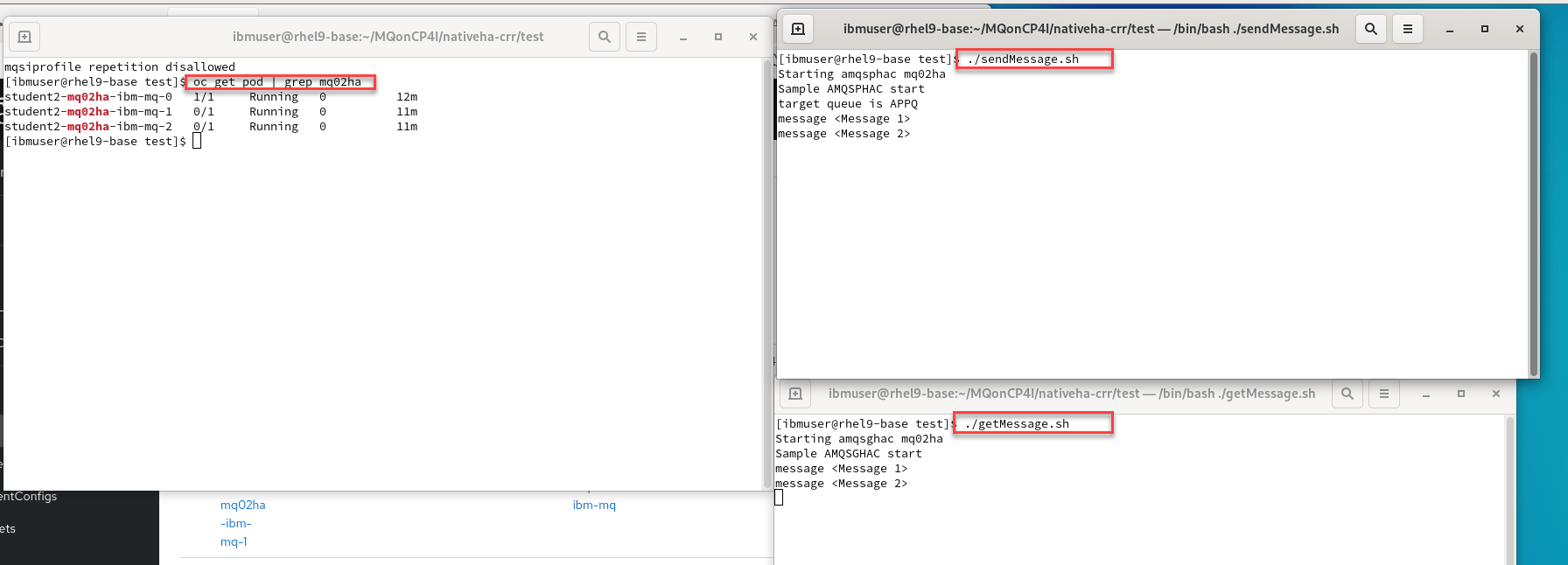
-
Delete the running pod by issuing the command:
oc delete pod student1-mq01ha-ibm-mq-0Once the active pod is deleted, the running programs will then reconnect to the other pod for it to take over.
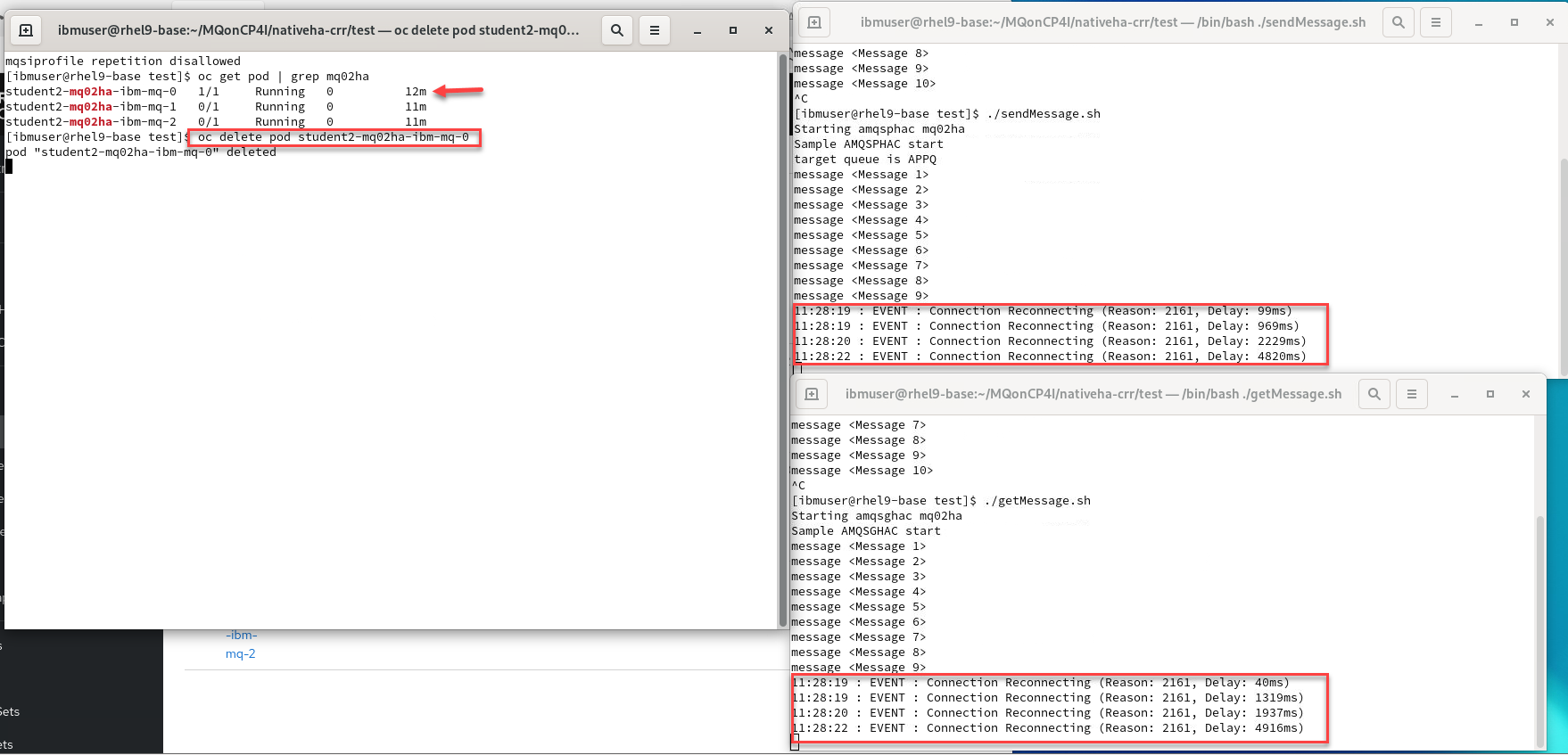
-
To verify that the other pod is now running, return to the terminal where you ran the “oc” command and issue the “get pods” again.
oc get pods | grep mq01haYou will see that pod student2-mq02ha-ibm-mq-2 is now the active pod and the other two are in standby. This is indicated by the Ready column which shows 1 of 1 containers is running. The other pods have 0 of 1 containers running.
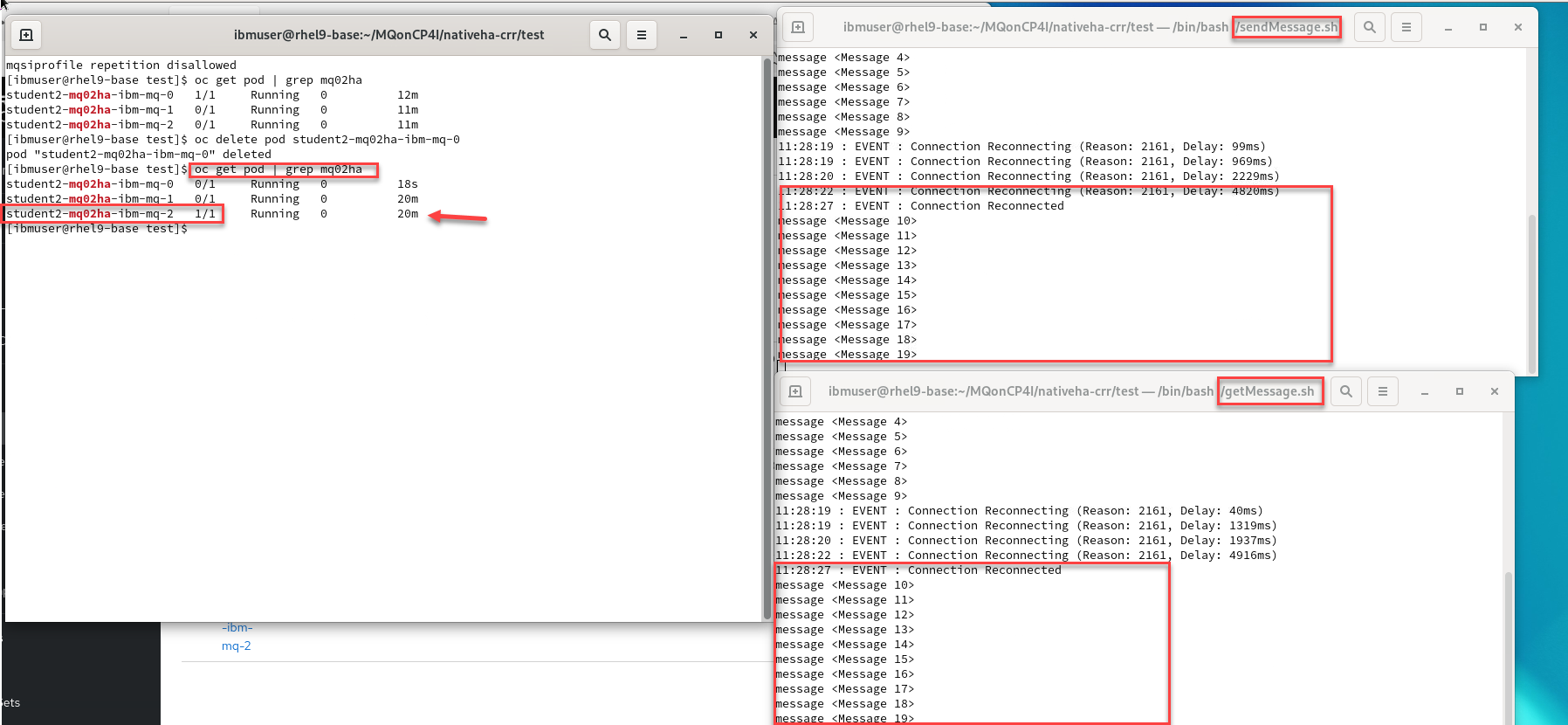
-
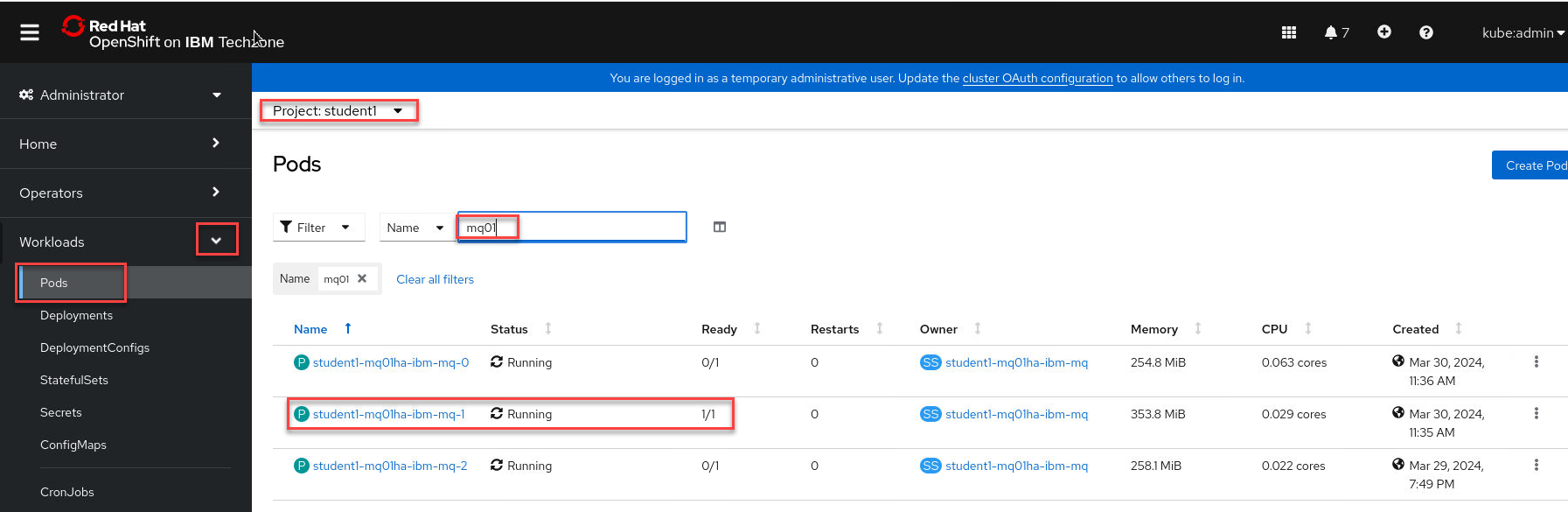
Return to the browser tab where OCP is open. In your project, click the drop-down for Workloads and select Pods. Enter your queue manager name in the Name field to filter out the rest. You will see the same information - student1-mq01ha-ibm-mq-1 is currently running.
-
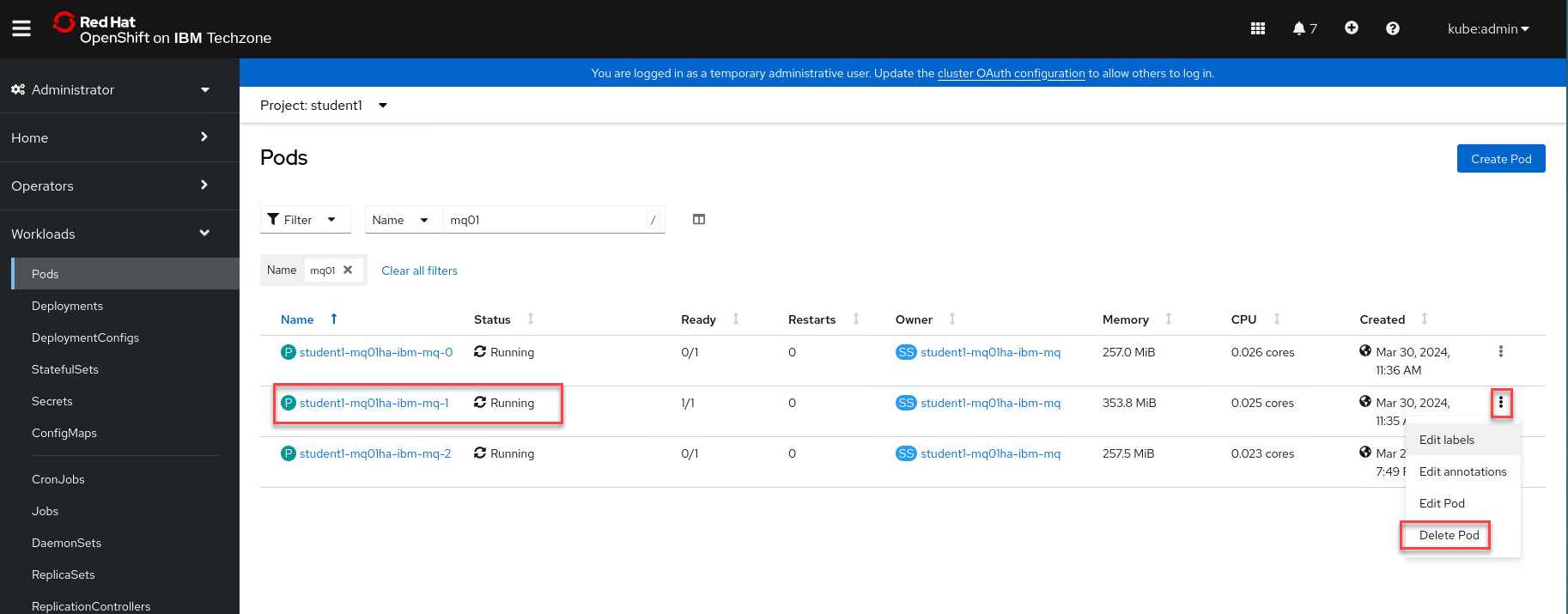
Still in OCP, kill the running pod and watch one of the standbys take over. Click the elipsis on the far right and select Delete Pod.
-
In the pop-up, click Delete to confirm the deletion.
-
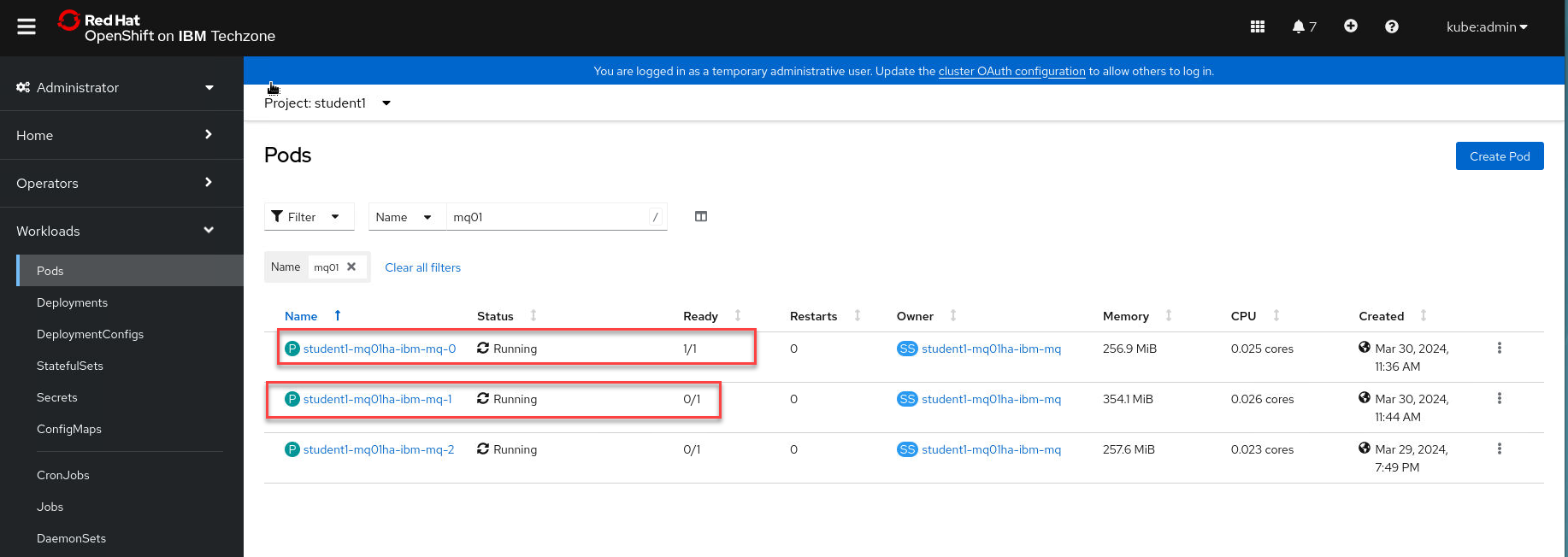
You will see pod student1-mq01ha-ibm-mq-1 status change to Terminating immediately and within seconds, student1-mq01ha-ibm-mq-0 becomes Running.
-
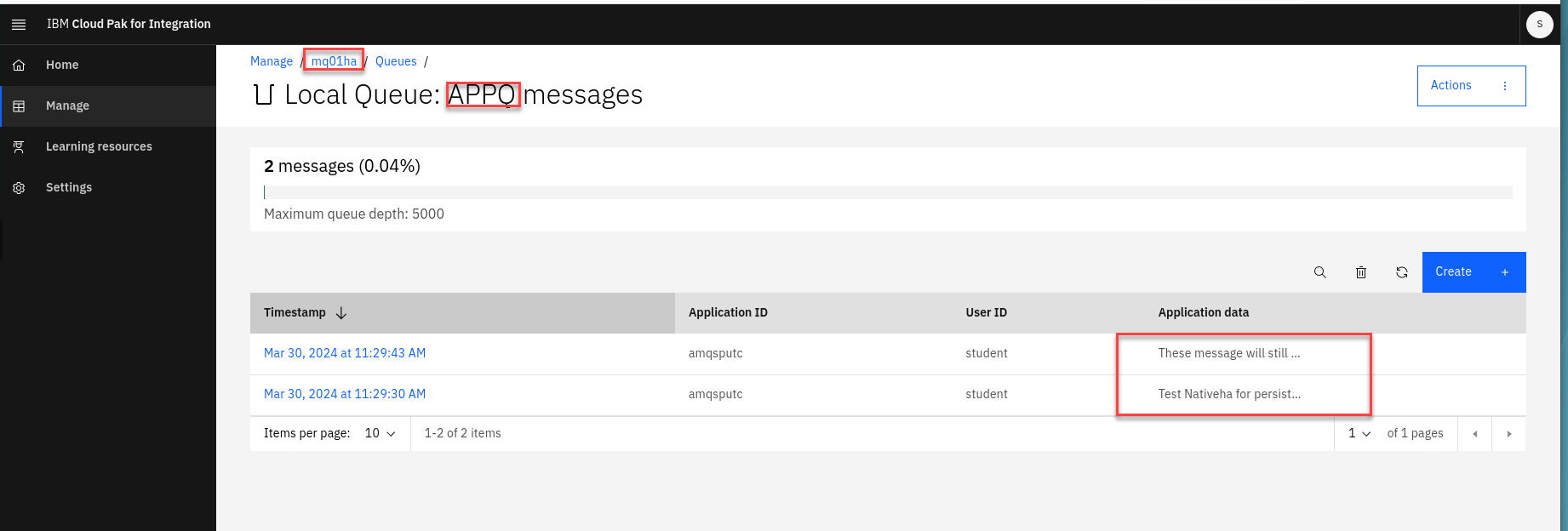
Return to the browser tab where MQ Console is running. Refresh the page and click Manage. Verify that queue APPQ1 still has the number of messages you put to the queue earlier.
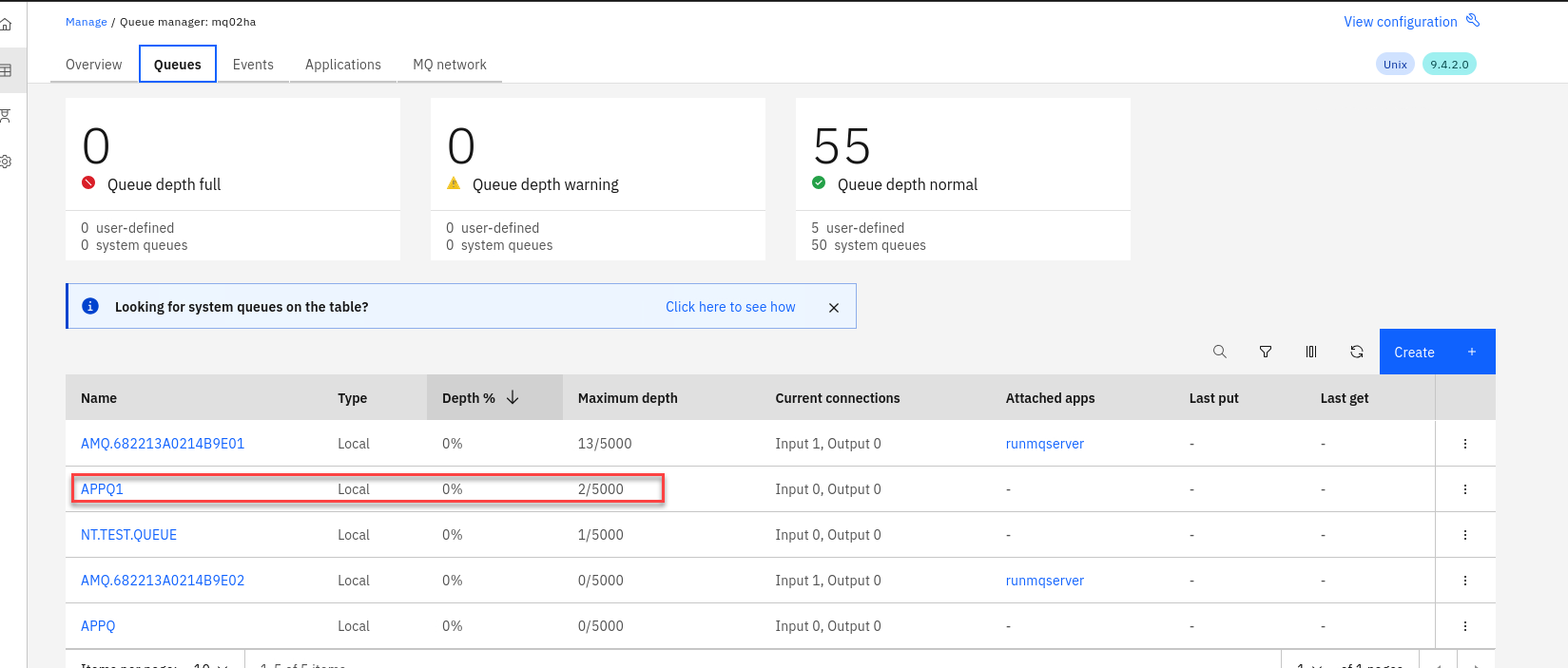
Click the hyperlink for the queue to verify that those are the messages you created.
Congratulations
You have completed this lab nativeHA for MQ on CP4I.
Appendix A
This covers varies commands to review.
We will not test every possibility, but the following are possible displays to expect. Review the possibilities.

* An active instance of the queue manager named **mq05ha** would report the following status:

		QMNAME(mq05ha)                 STATUS(Running)

* A replica instance of the queue manager would report the following status:

		QMNAME(mq05ha)                 STATUS(Replica)

* An inactive instance would report the following status:

		QMNAME(mq05ha)                 STATUS(Ended Immediately)

We will not test every possibility, but the following are possible displays to expect. Review the possibilities.

* The active instance of the queue manager named **mq05ha** might report the following status:

		QMNAME(mq05ha)               ROLE(Active) INSTANCE(inst1) INSYNC(Yes) QUORUM(3/3)

* A replica instance of the queue manager might report the following status:

		QMNAME(mq05ha)               ROLE(Replica) INSTANCE(inst2) INSYNC(Yes) QUORUM(2/3)

* An inactive instance of the queue manager might report the following status:

		QMNAME(mq05ha)               ROLE(Unknown) INSTANCE(inst3) INSYNC(no) QUORUM(0/3)
-
To determine the Native HA operational status of all the instances in the Native HA configuration:
oc rsh student1-mq01ha-ibm-mq-0 dspmq -o nativeha -x -m mq01ha
We will not test every possibility, but the following are possible displays to expect. Review the possibilities.
-
If you issue this command on the node running the active instance of queue manager mq05ha, you might receive the following status:
QMNAME(mq05ha) ROLE(Active) INSTANCE(inst1) INSYNC(Yes) QUORUM(3/3) INSTANCE(mq05ha-ibm-mq-0) ROLE(Active) REPLADDR(mq05ha-ibm-mq-0) CONNACTV(Yes) INSYNC(Yes) BACKLOG(0) CONNINST(Yes) ALTDATE(2021-01-12) ALTTIME(12.03.44) INSTANCE(mq05ha-ibm-mq-1) ROLE(Replica) REPLADDR(mq05ha-ibm-mq-1) CONNACTV(Yes) INSYNC(Yes) BACKLOG(0) CONNINST(Yes) ALTDATE(2021-01-12) ALTTIME(12.03.44) INSTANCE(mq05ha-ibm-mq-2) ROLE(Replica) REPLADDR(mq05ha-ibm-mq-2) CONNACTV(Yes) INSYNC(Yes) BACKLOG(0) CONNINST(Yes) ALTDATE(2021-01-12) ALTTIME(12.03.44) -
If you issue this command on a node running a replica instance of queue manager mq05ha, you might receive the following status, which indicates that one of the replicas is lagging behind:
QMNAME(mq05ha) ROLE(Replica) INSTANCE(inst2) INSYNC(Yes) QUORUM(2/3) INSTANCE(mq05ha-ibm-mq-2) ROLE(Replica) REPLADDR(mq05ha-ibm-mq-2) CONNACTV(Yes) INSYNC(Yes) BACKLOG(0) CONNINST(Yes) ALTDATE(2021-01-12) ALTTIME(12.03.44) INSTANCE(mq05ha-ibm-mq-0) ROLE(Active) REPLADDR(mq05ha-ibm-mq-0) CONNACTV(Yes) INSYNC(Yes) BACKLOG(0) CONNINST(Yes) ALTDATE(2021-01-12) ALTTIME(12.03.44) INSTANCE(mq05ha-ibm-mq-1) ROLE(Replica) REPLADDR(mq05ha-ibm-mq-1) CONNACTV(Yes) INSYNC(No) BACKLOG(435) CONNINST(Yes) ALTDATE(2021-01-12) ALTTIME(12.03.44) -
If you issue this command on a node running an inactive instance of queue manager mq05ha, you might receive the following status:
QMNAME(mq05ha) ROLE(Unknown) INSTANCE(inst3) INSYNC(no) QUORUM(0/3) INSTANCE(mq05ha-ibm-mq-0) ROLE(Unknown) REPLADDR(mq05ha-ibm-mq-0) CONNACTV(Unknown) INSYNC(Unknown) BACKLOG(Unknown) CONNINST(No) ALTDATE() ALTTIME() INSTANCE(mq05ha-ibm-mq-1) ROLE(Unknown) REPLADDR(mq05ha-ibm-mq-1) CONNACTV(Unknown) INSYNC(Unknown) BACKLOG(Unknown) CONNINST(No) ALTDATE() ALTTIME() INSTANCE(mq05ha-ibm-mq-2) ROLE(Unknown) REPLADDR(mq05ha-ibm-mq-2) CONNACTV(No) INSYNC(Unknown) BACKLOG(Unknown) CONNINST(No) ALTDATE() ALTTIME() -
If you issue the command when the instances are still negotiating which is active and which are replicas, you would receive the following status:
QMNAME(mq05ha) STATUS(Negotiating)
-
-
If necessary, use these commands while testing the deployment.