IBM Integration PoT Labs Home page
API Connect - Generate Testcases Automatically using the SmartGenerator
1. Overview
In this lab, you will explore “Test APIs” feature of IBM API Connect that can automatically generate test cases to execute calls and trace the API actions. By using IBM Api Connect TestAPIs capability you can deliver high quality APIs consistently and improve developer productivity with automation and AI powered testing capabilities.
Reference: https://www.ibm.com/products/api-connect/api-testing
You will be using Customer Database Rest API deployed to explore Test APIs capability of IBM API Connect.
2. Api Connect - Test APIs
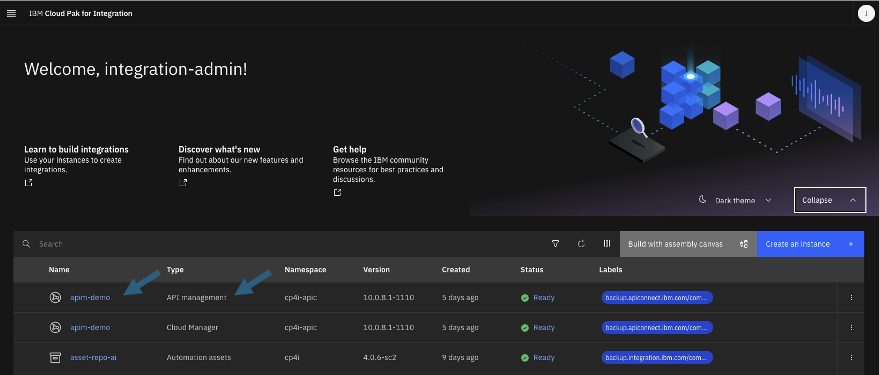
From the Cloud Pak for Integration Platform Navigator, open API Connect Manager (apim-demo).
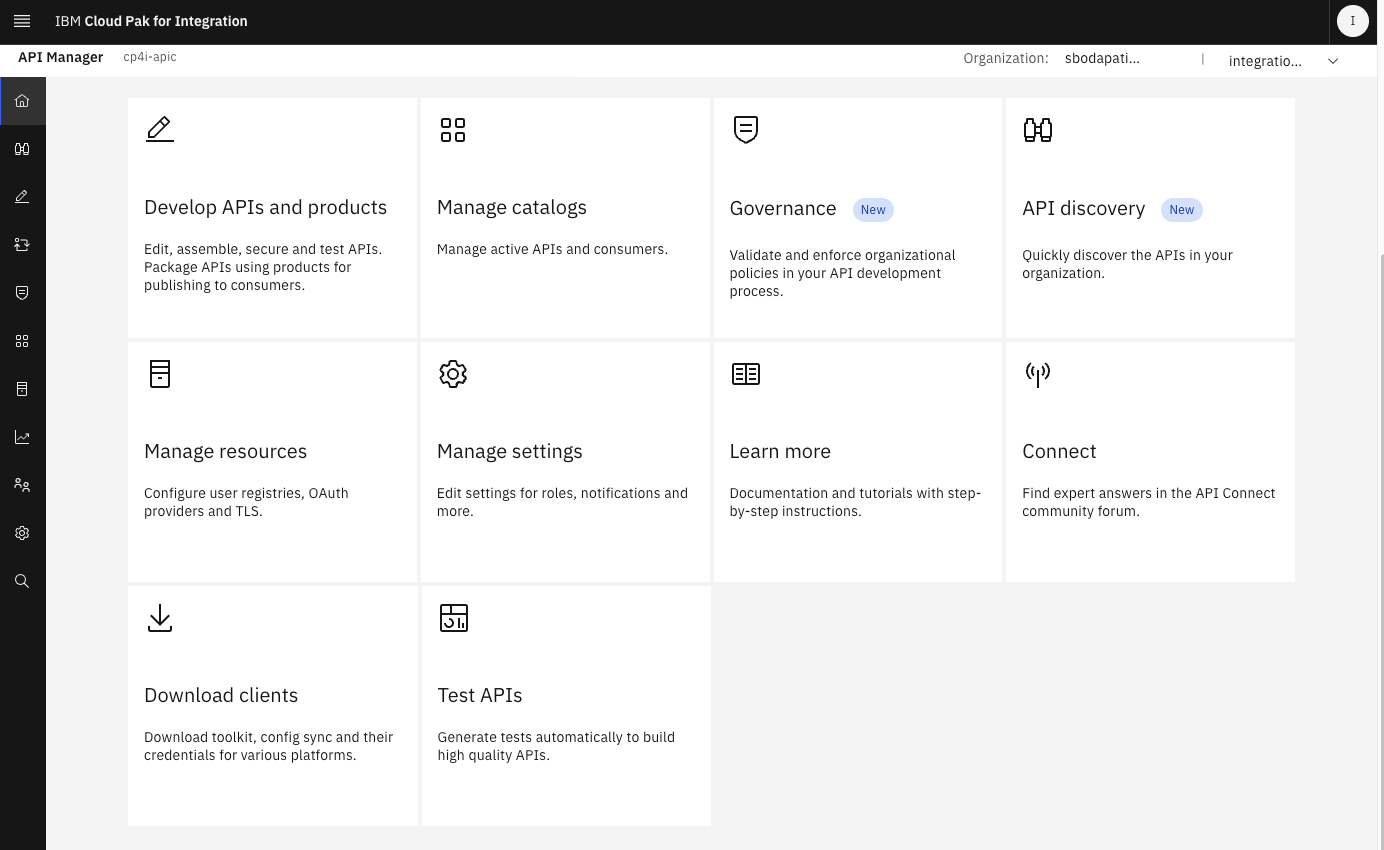
Click on the “Test APIs” tile.
3. Add Test Suite
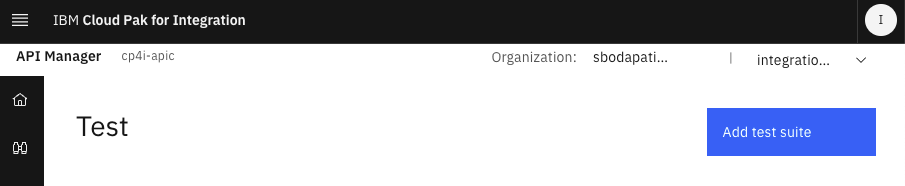
Click on "Add test suite".
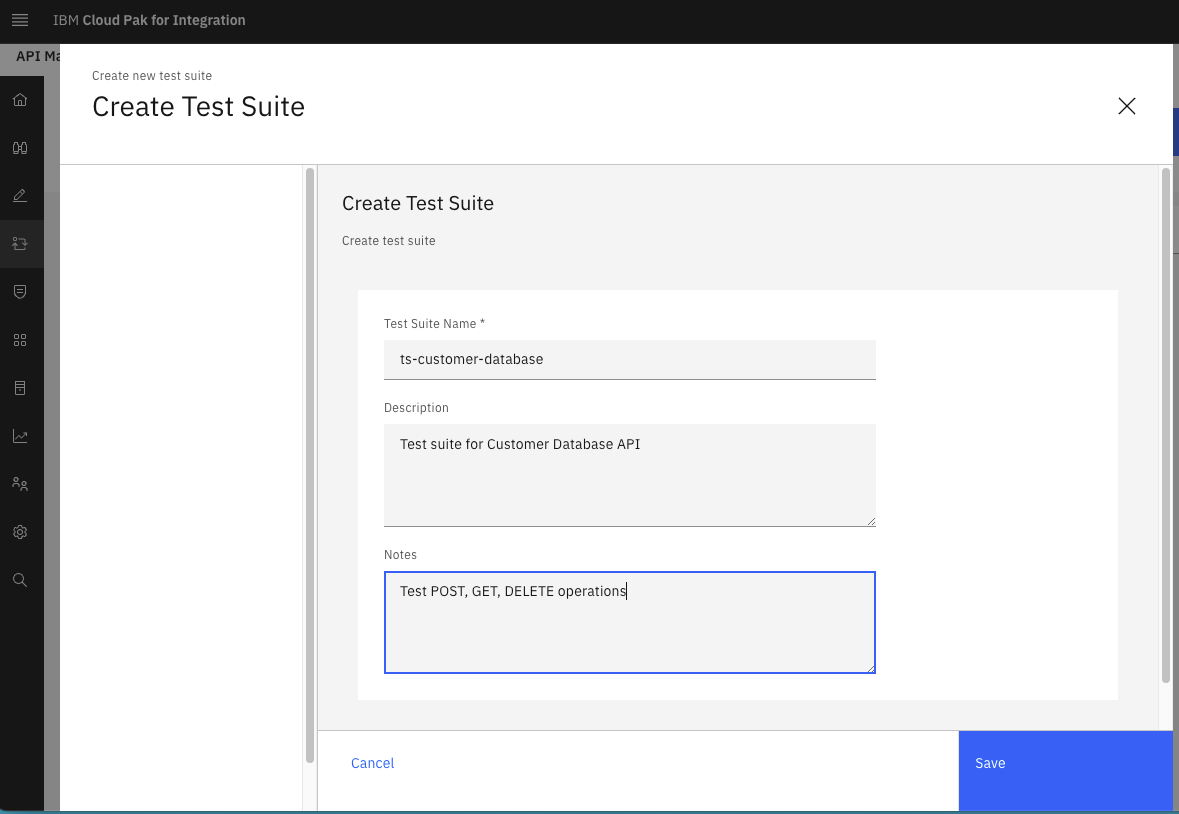
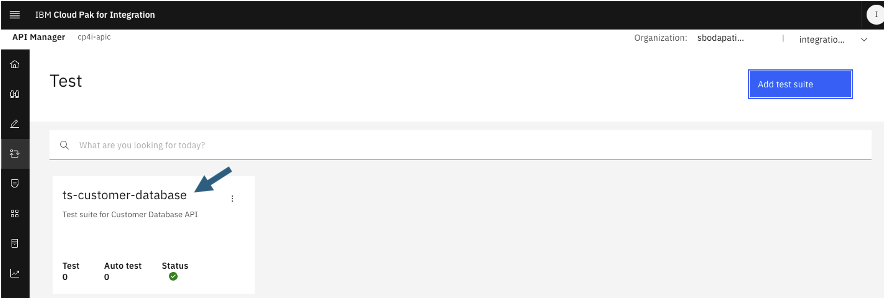
Click on the ts-customer-database test suite.
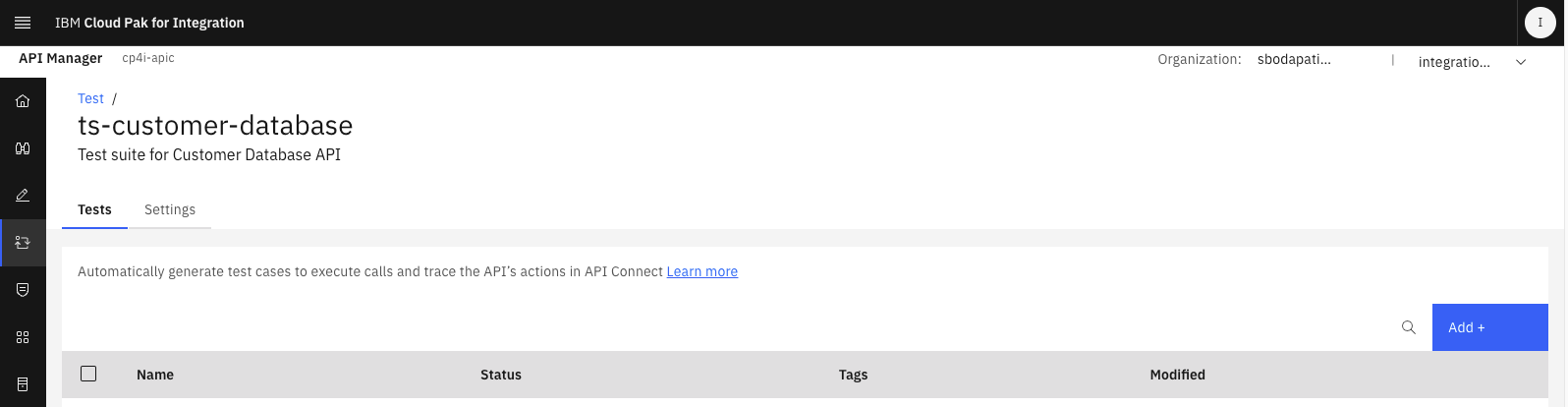
3. Add Test
Click <Add> to add a test.
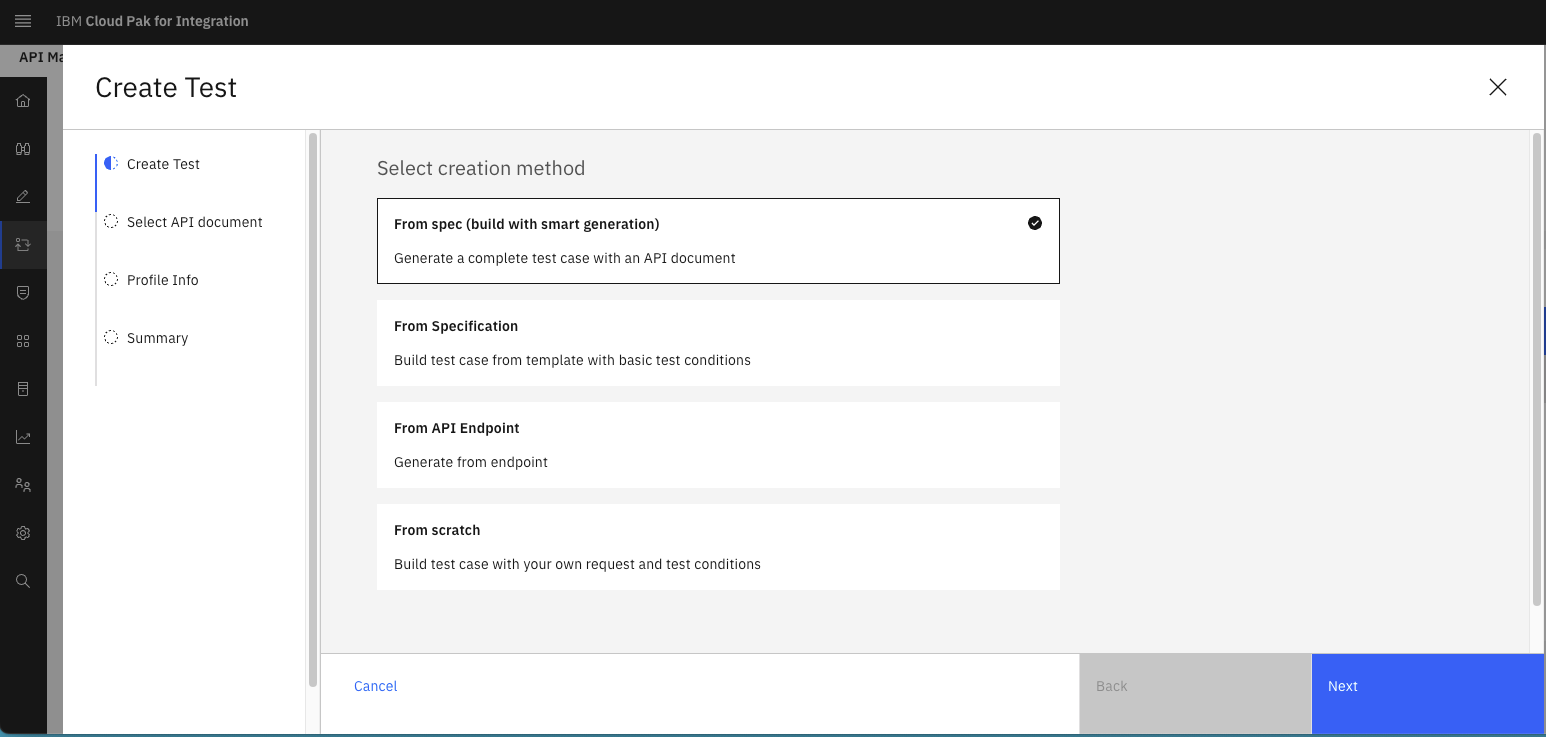 <Next>
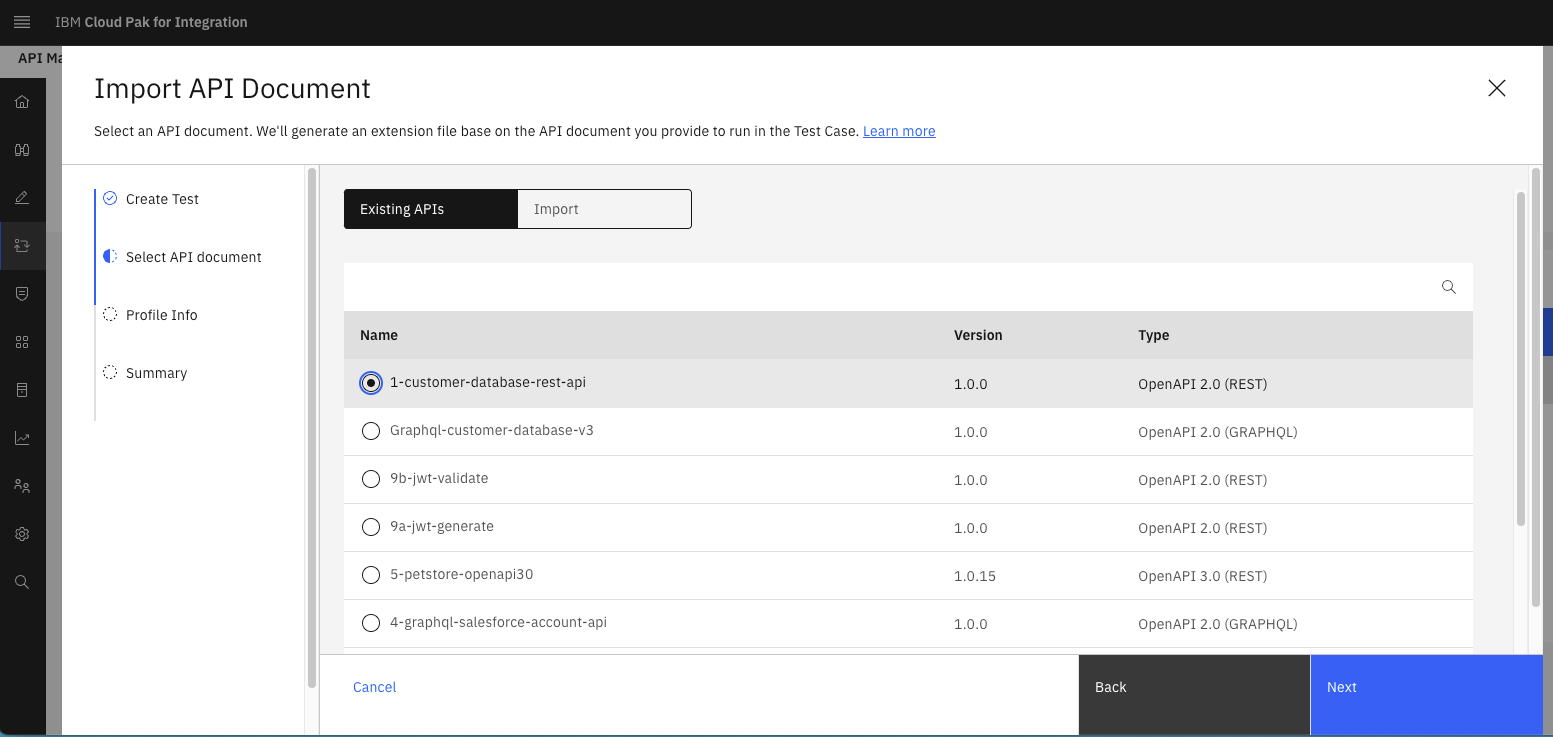
Select the Customer Database REST API you deployed in the API Management first lab.
<Next>
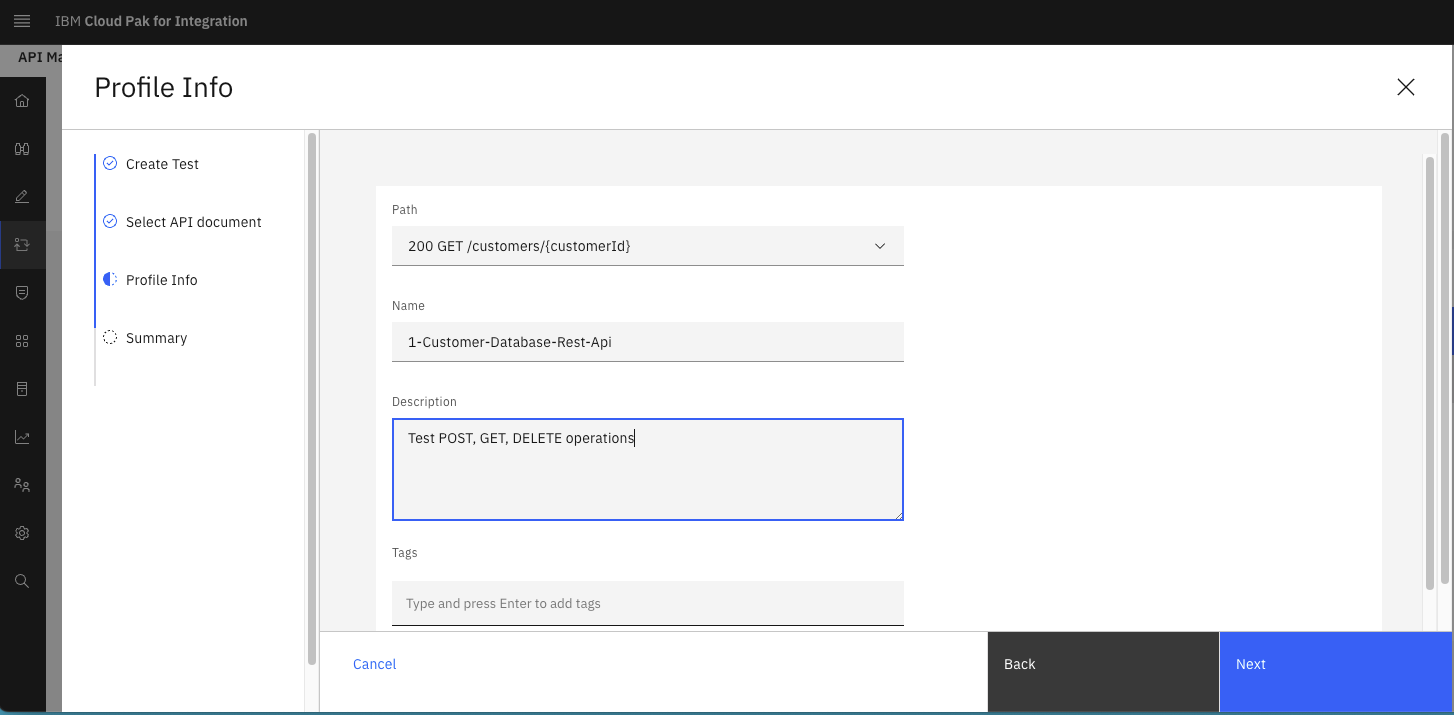
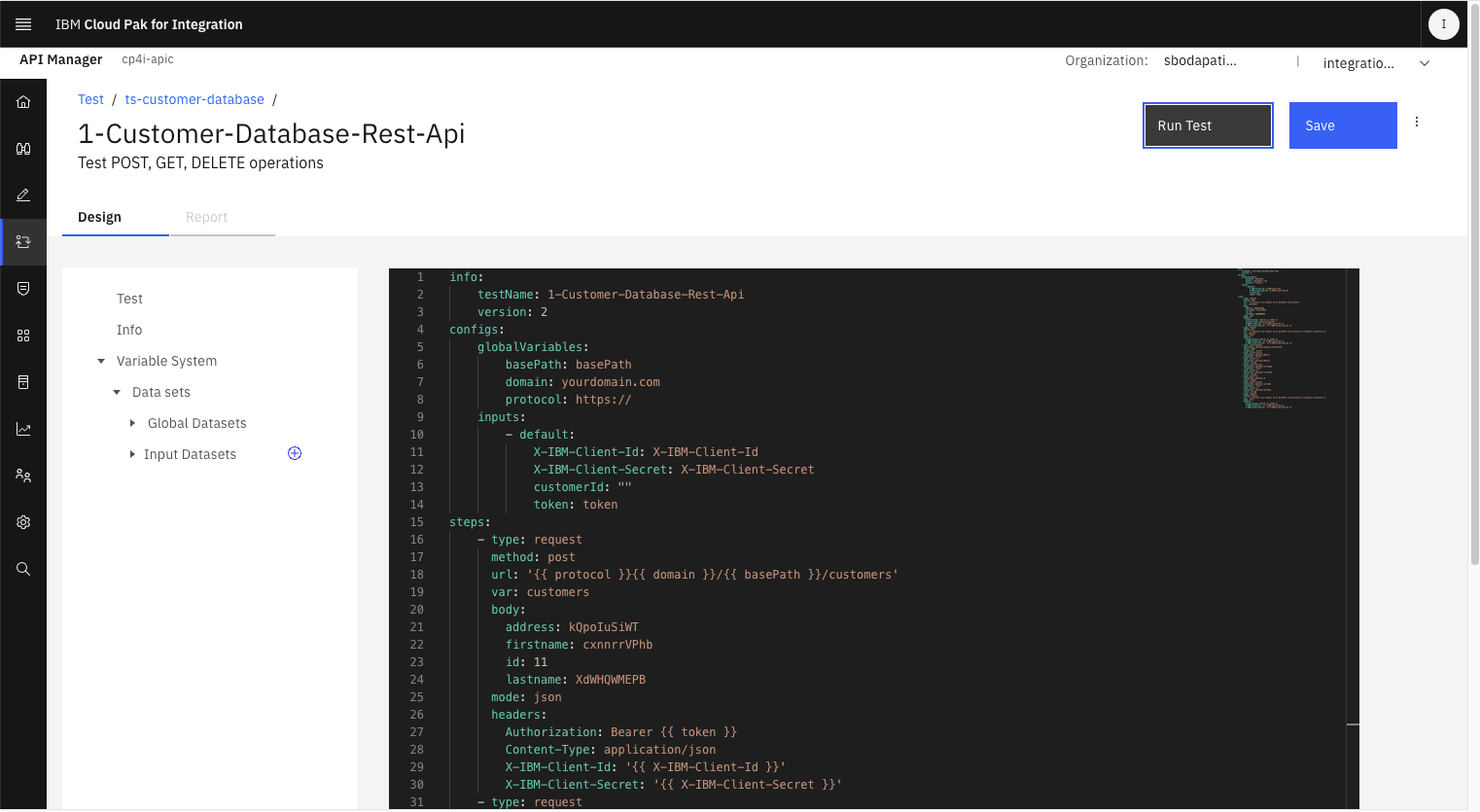
Hit <Save> button on the top right of the screen.
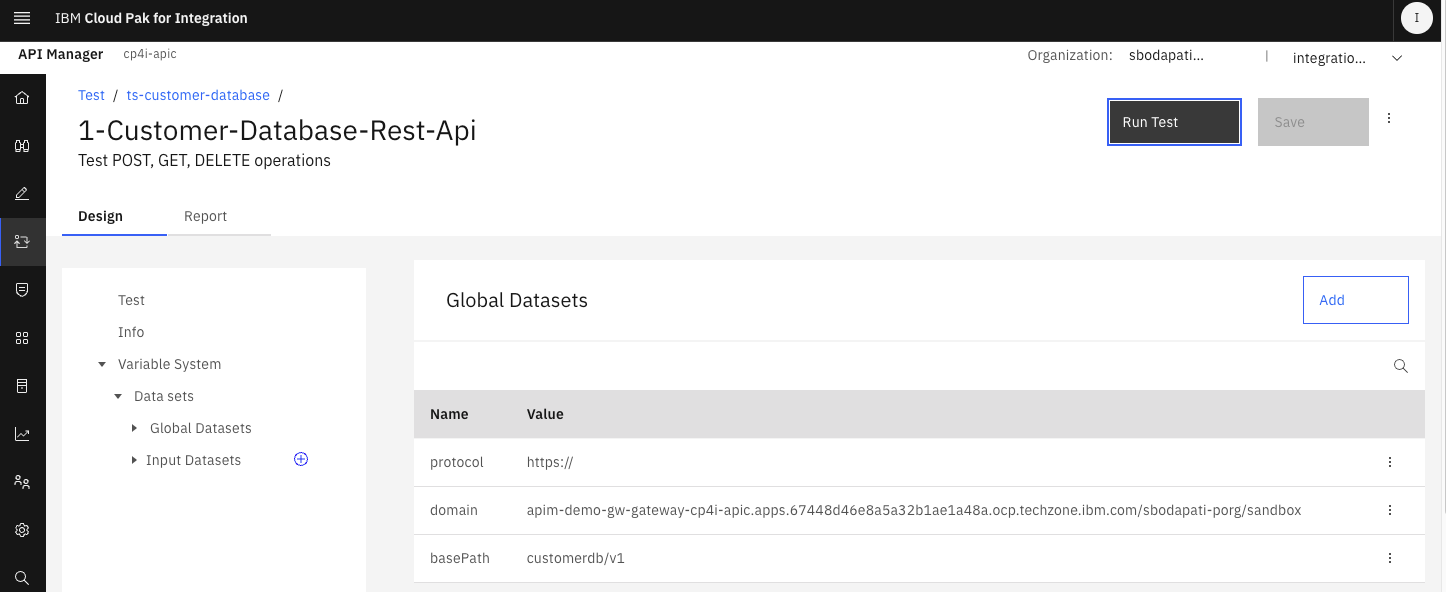
4. Set Global Datasets
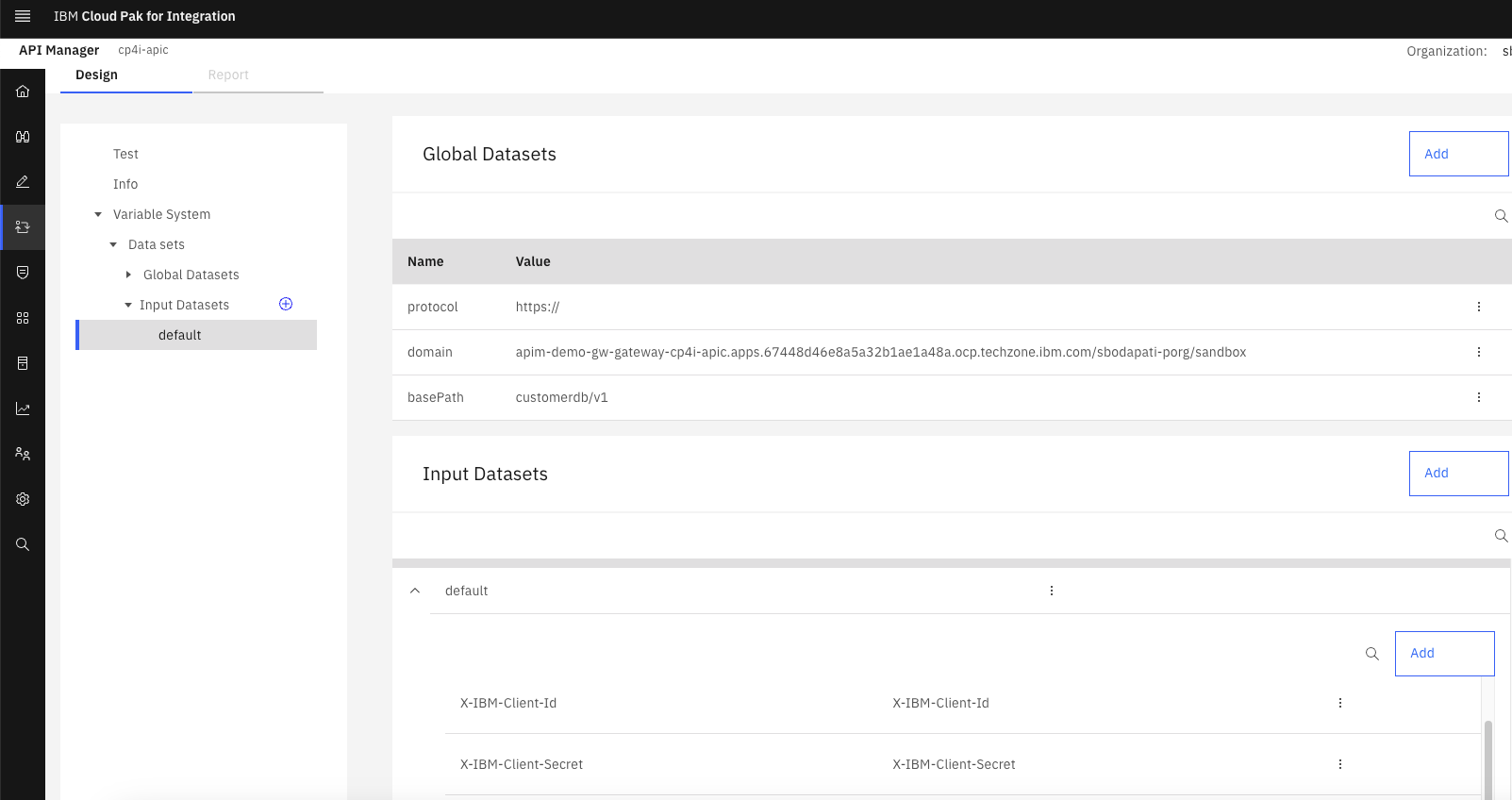
Now, lets update the “Global Datasets”.
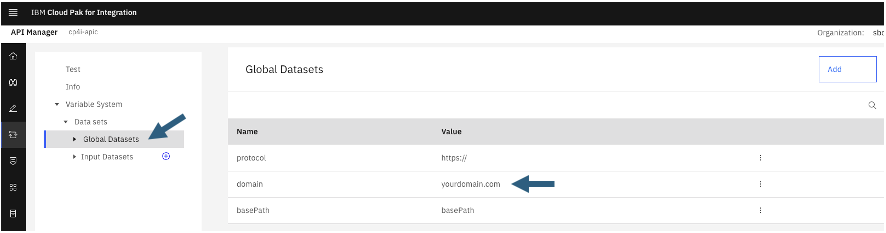
Before we update the “Global Datasets” lets capture the Customer Database API’s API Gateway URL from the Developer Portal.
Click on the Home icon on the top left.
Click on “Manage Catalogs” tile.
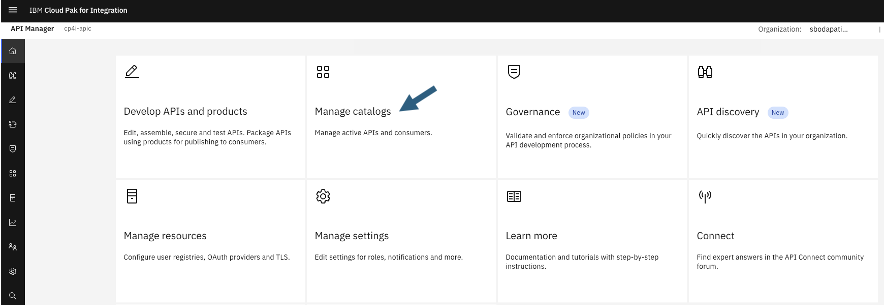
Click on “Sandbox” catalog tile.
Click on “Catalog Settings” tab, and Portal on the left.
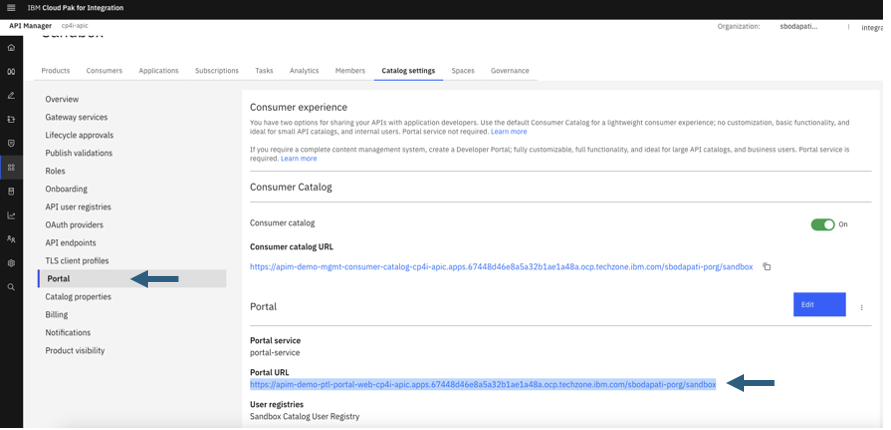
Once the Developer Portal is open then click on the Product that the Customer Database API is published.
Select the Customer Database API, and capture the domain as below.
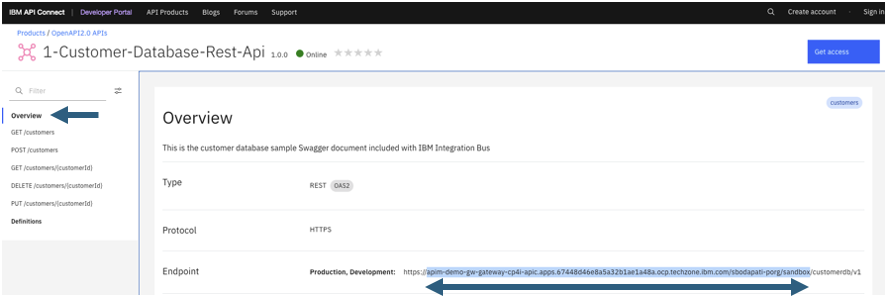
Copy that select section and paste into a Notepad.
Now, lets go back to the “Test APIs” and open the Test you created previously.
Click on the “Data Sets” section.
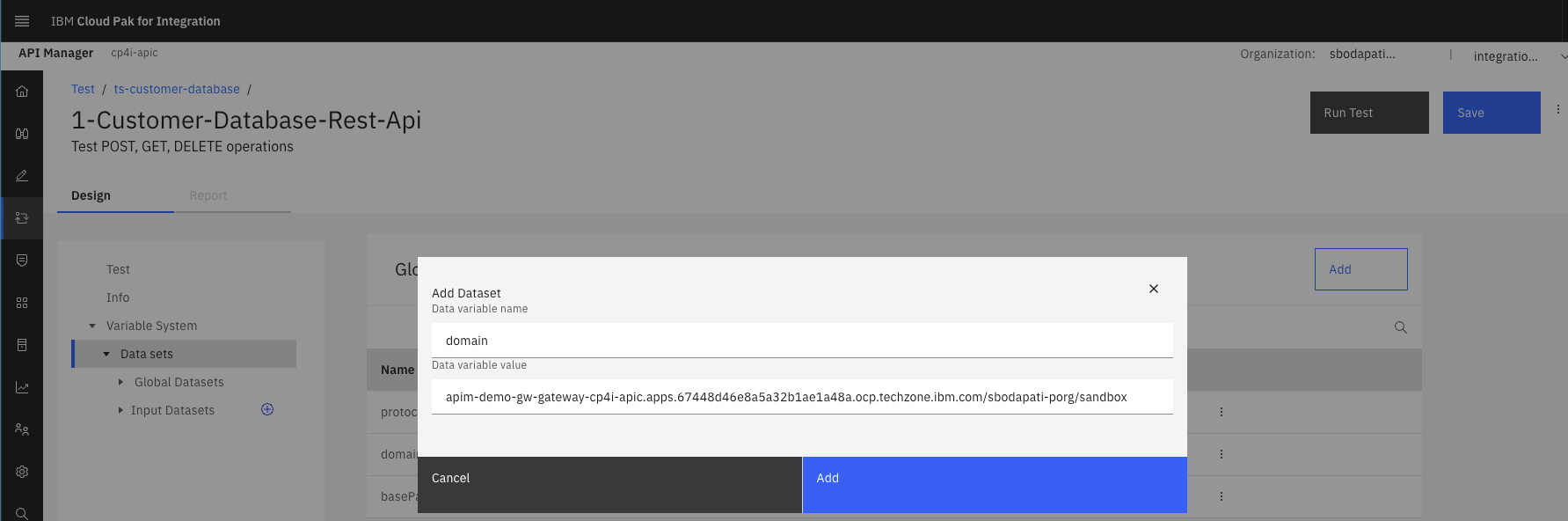
Edit domain from “yourdomain.com” with what you captured in the Developer Portal.
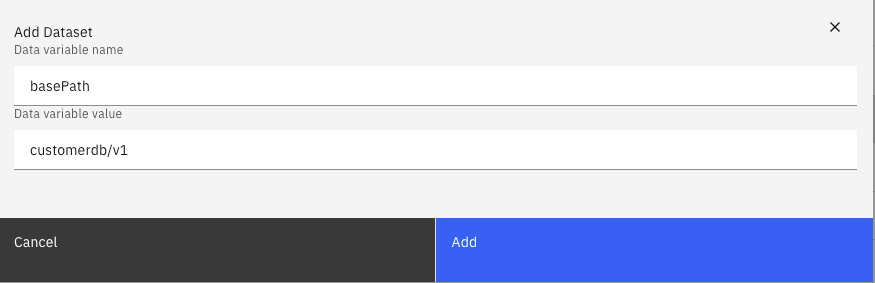
Edit the basePath and set to “customerdb/v1”.
Hit the <Save> button on the top right.
5. Set Input Datasets
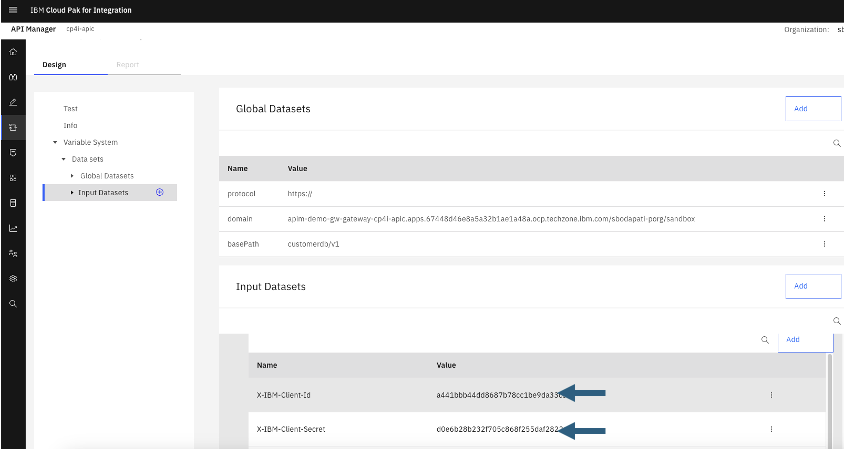
5a. Update X-IBM-Client-Id, and X-IBM-Client-Secret
In the API Connect Developer Portal lab, you must have created an application and obtained ClientId, and ClientSecret. Lets populate those values as below.
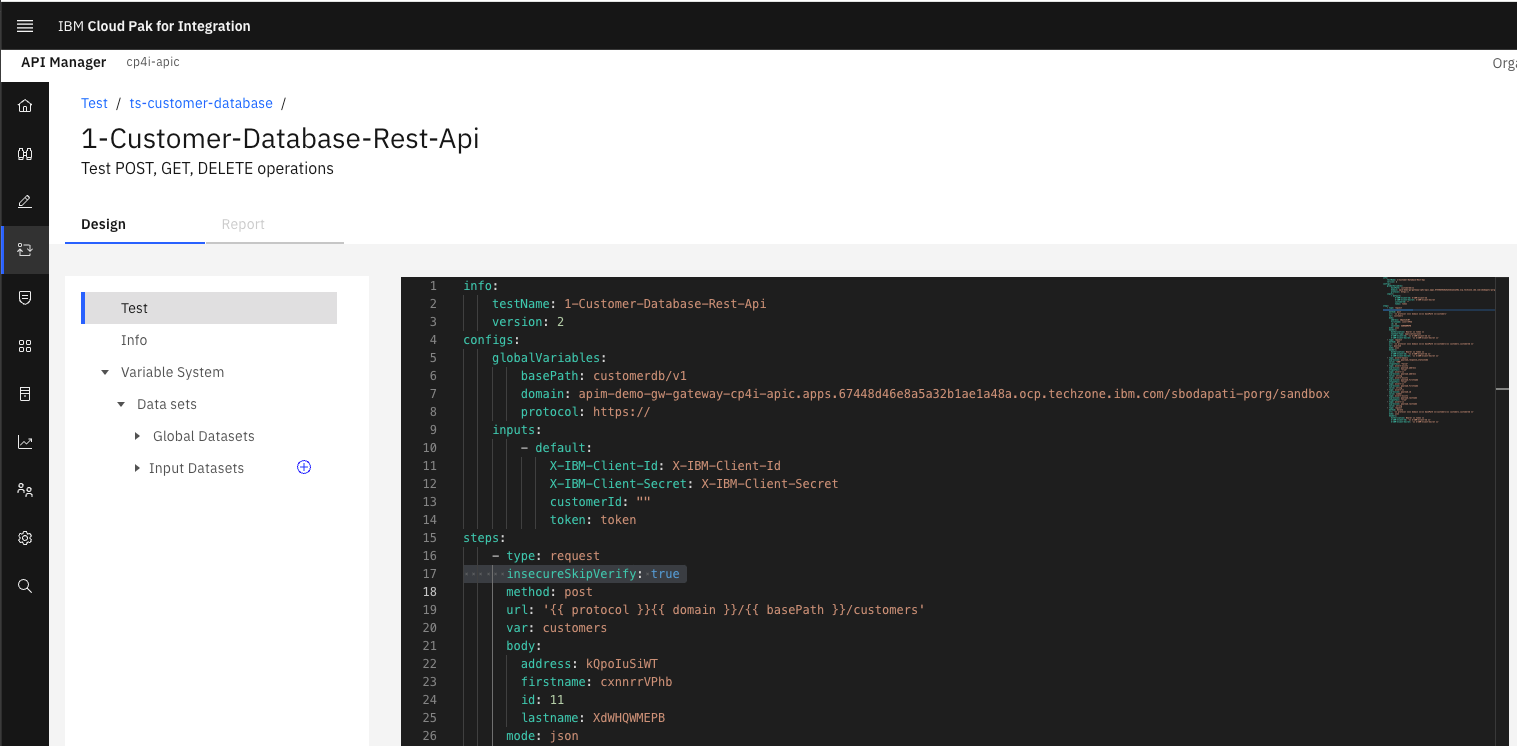
5. Disable Security
Disable security to the API Gateway URL by adding insecureSkipVerify flag to each operation.
insecureSkipVerify: true
6. Mockup Customer Record
Update POST operation, enter mockup data as below.
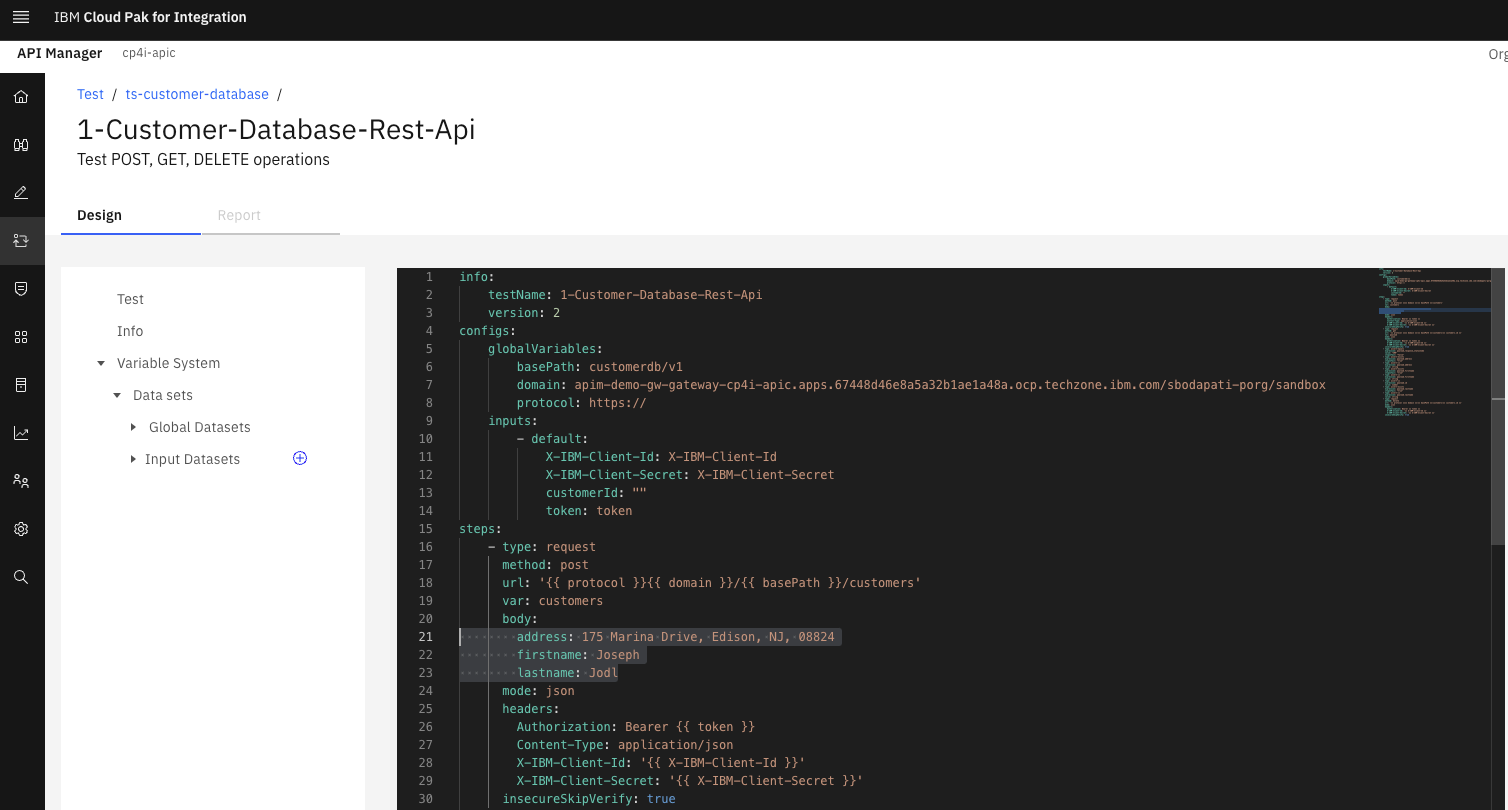
Hit <Save> button on the top right.
7. Replace customerId parm with id
The POST operation returns and “id” back so we should change customers.customerId with customers.id in the GET and DELETE operations.
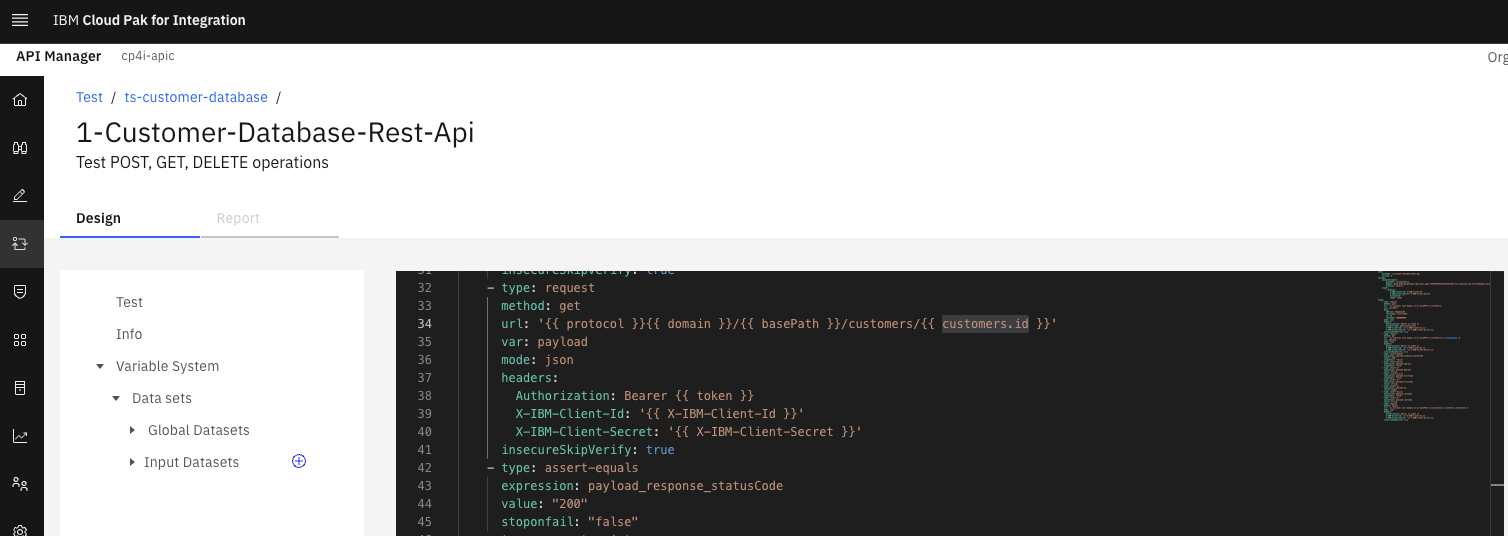
Hit <Save> button on the top right.
8. Add body element to DELETE operation
The Customer Database API’s DELETE operation is expecting a non null body. Let’s append body: with curly open&close curly brackets.
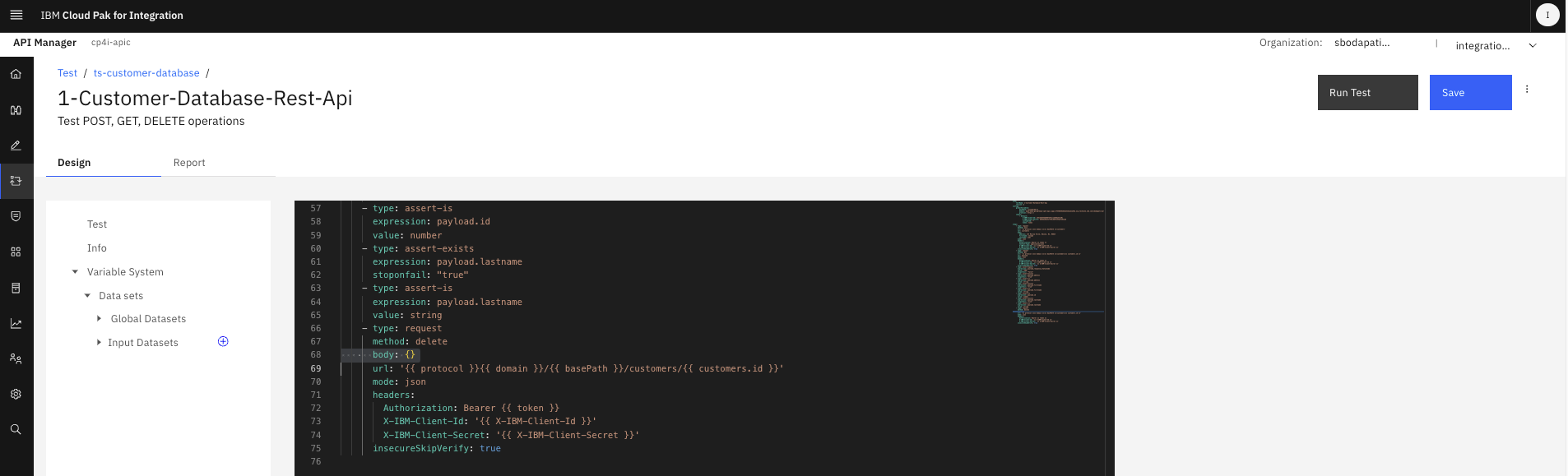
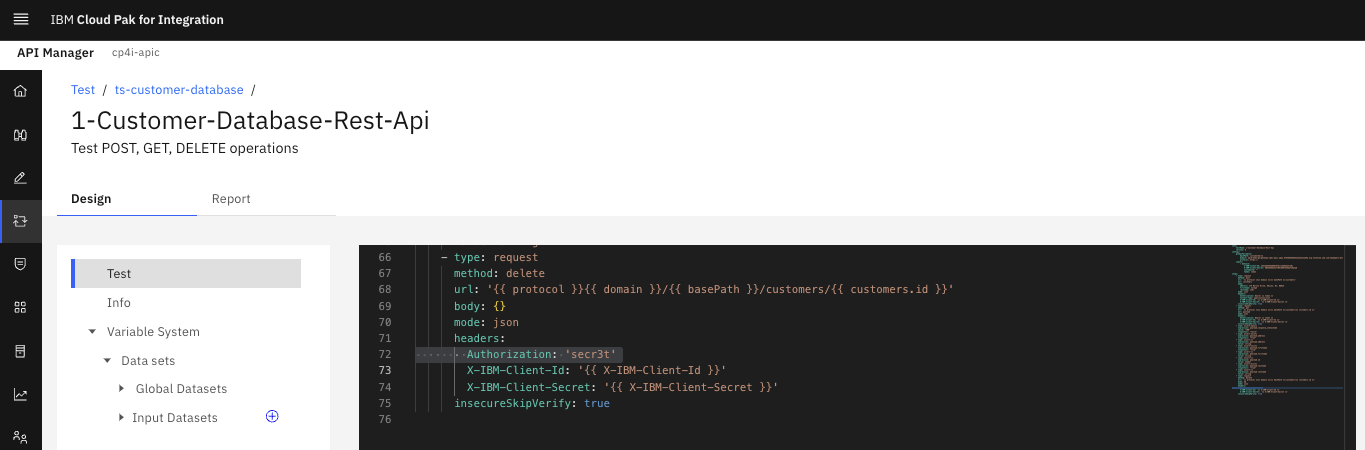
8. Update Authorization header element of DELETE operation
Authorization: secr3t
8. Run Test
Hit “Run Test” button.
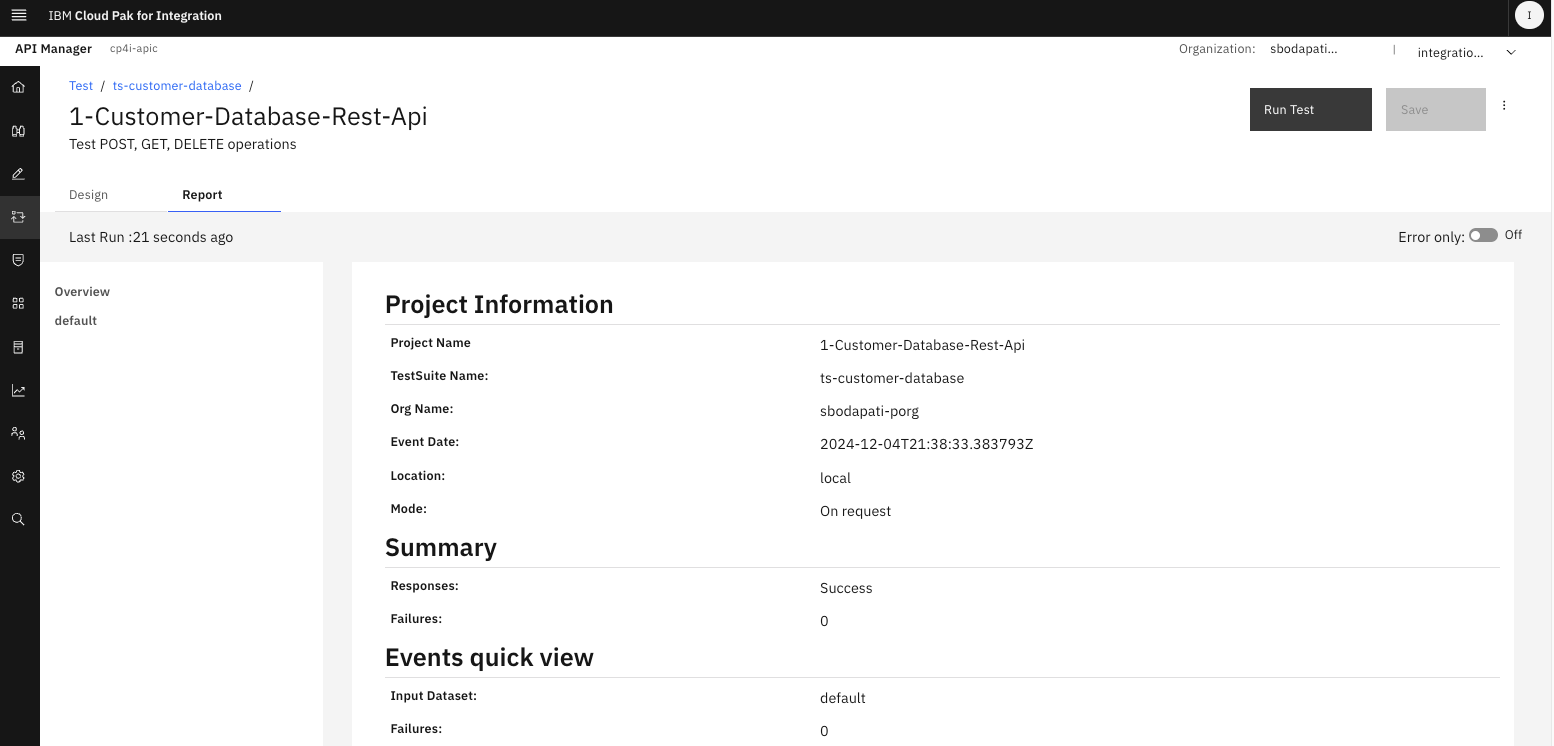
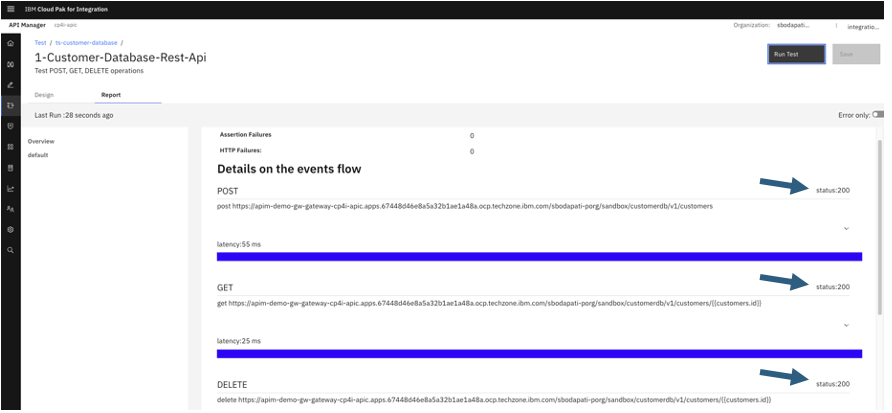
8. Optional - Running the Test from Command line
in this section we will create a webhook, and apikey to run the test from a command line.
Click on your Test Suite.
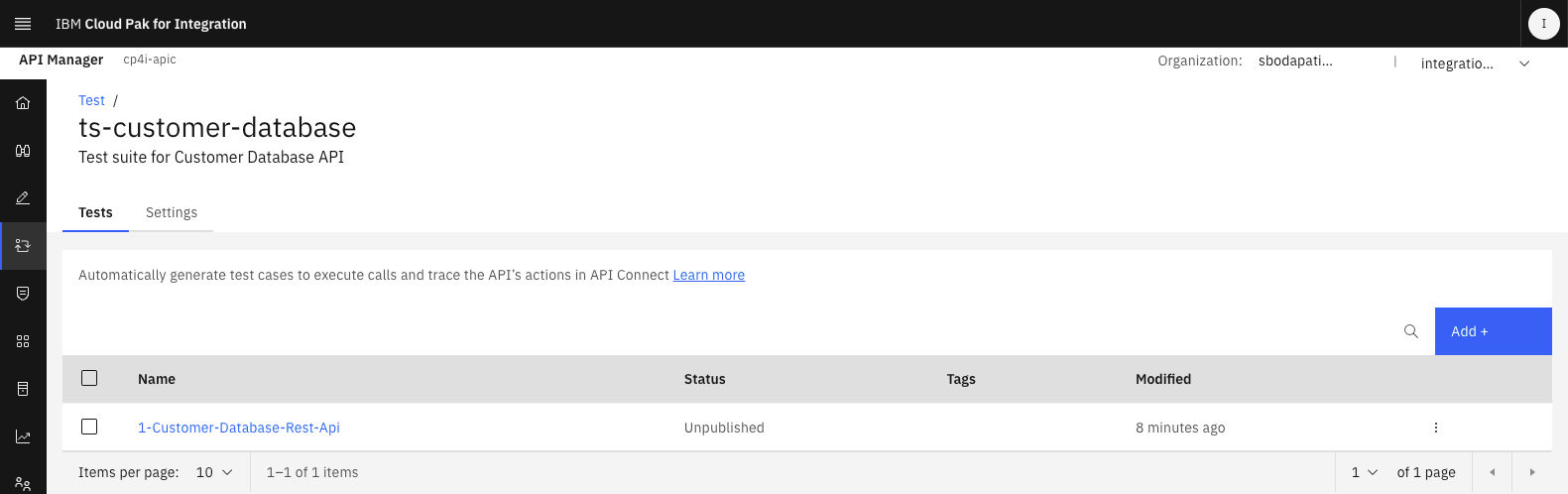
8a. Publish the Test
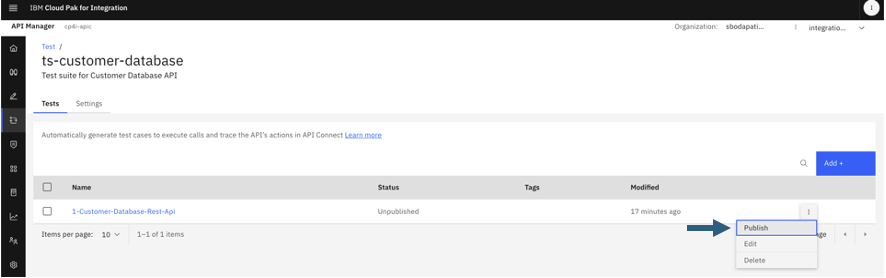
Click <Yes>.
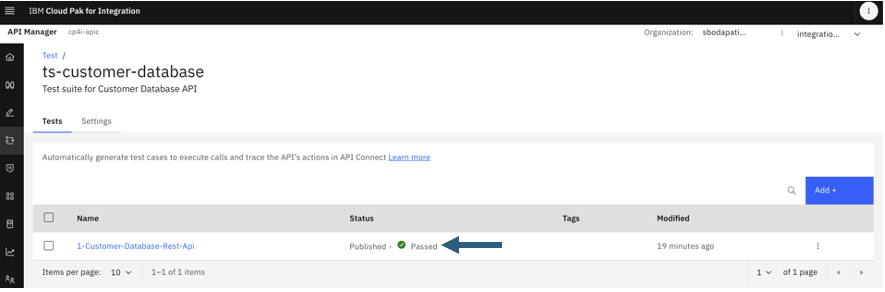
8b. Create webhook
Click on the Settings tab.
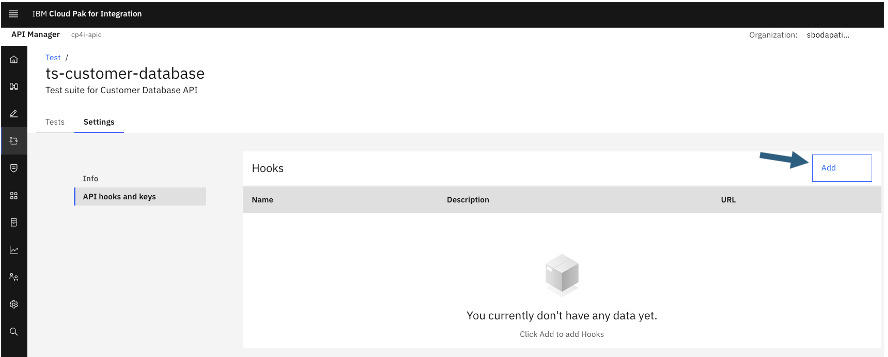
Click on “API hooks and keys” and Click on <Add> button in the Hooks section.
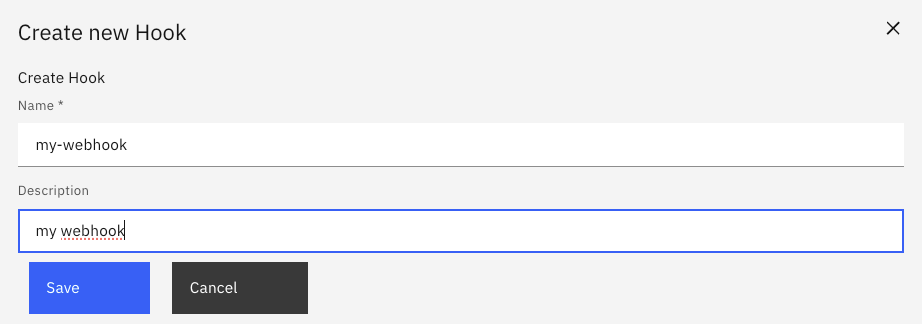
Copy and save the URL to Notepad.
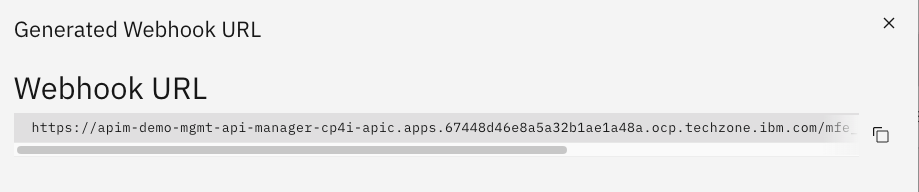
8b. Create key
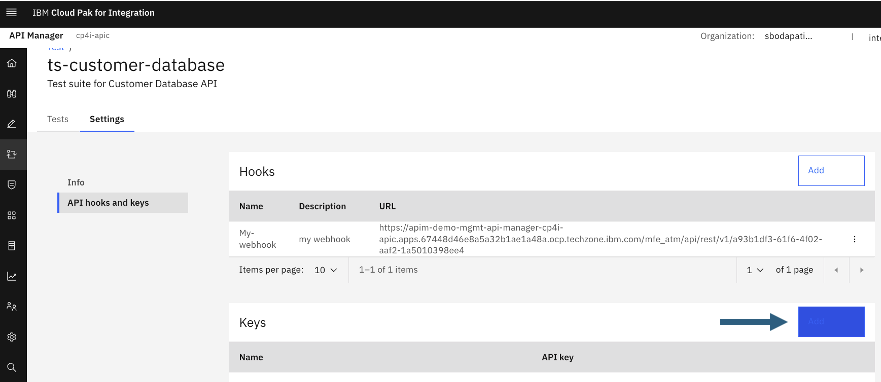
Click <Add>.
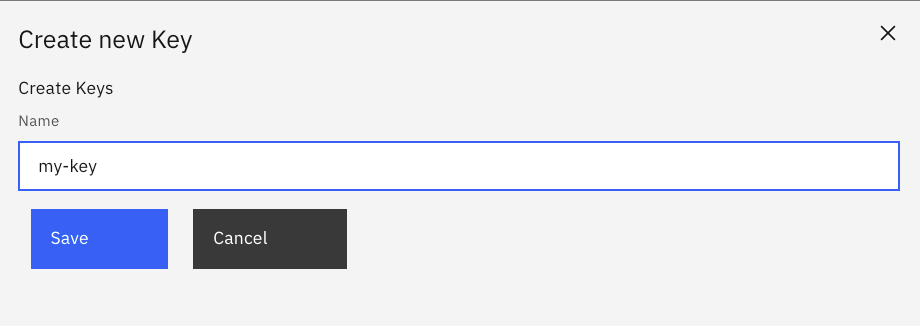
Capture the Key, Secret into the Notepad.
8c. Run from the Command line
export KEY=PASTE-THE-KEY
export SECRET=PASTE-THE-SECRET
export WEBHOOK=PASTE-THE-WEBHOOK-URL
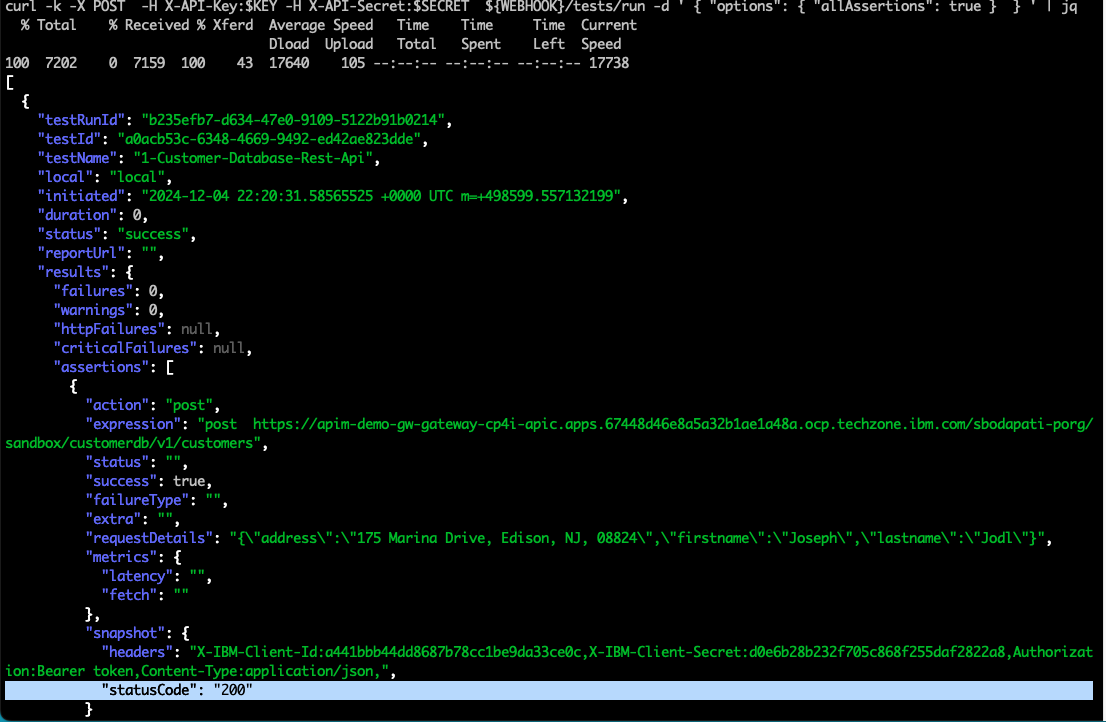
curl -k -X POST  -H X-API-Key:$KEY -H X-API-Secret:$SECRET  ${WEBHOOK}/tests/run" -d ' { "options": { "allAssertions": true }  } ' | jq
You should see output like below with 200 status codes.
9. Reference
9a. Completed Testcase
info:
    testName: 1-Customer-Database-Rest-Api
    version: 2
configs:
    globalVariables:
        basePath: customerdb/v1
        domain: apim-demo-gw-gateway-cp4i-apic.apps.67448d46e8a5a32b1ae1a48a.ocp.techzone.ibm.com/sbodapati-porg/sandbox
        protocol: https://
    inputs:
        - default:
            X-IBM-Client-Id: a441bbb44dd8687b78cc1be9da33ce0c
            X-IBM-Client-Secret: d0e6b28b232f705c868f255daf2822a8
            customerId: ""
            token: token
steps:
    - type: request
      method: post
      url: '//customers'
      var: customers
      body:
        address: 175 Marina Drive, Edison, NJ, 08824
        firstname: Joseph
        lastname: Jodl
      mode: json
      headers:
        Authorization: Bearer
        Content-Type: application/json
        X-IBM-Client-Id: ''
        X-IBM-Client-Secret: ''
      insecureSkipVerify: true
    - type: request
      method: get
      url: '//customers/'
      var: payload
      mode: json
      headers:
        Authorization: Bearer
        X-IBM-Client-Id: ''
        X-IBM-Client-Secret: ''
      insecureSkipVerify: true
    - type: assert-equals
      expression: payload_response_statusCode
      value: "200"
      stoponfail: "false"
    - type: assert-exists
      expression: payload.address
      stoponfail: "true"
    - type: assert-is
      expression: payload.address
      value: string
    - type: assert-exists
      expression: payload.firstname
      stoponfail: "true"
    - type: assert-is
      expression: payload.firstname
      value: string
    - type: assert-is
      expression: payload.id
      value: number
    - type: assert-exists
      expression: payload.lastname
      stoponfail: "true"
    - type: assert-is
      expression: payload.lastname
      value: string
    - type: request
      method: delete
      url: '//customers/'
      body: {}
      mode: json
      headers:
        Authorization: secr3t
        X-IBM-Client-Id: ''
        X-IBM-Client-Secret: ''
      insecureSkipVerify: true